

Error:
- Failure | Error Code:21920000
ShortMessage:You must select a product from the eBay catalog when listing Amazon items in the Voice-Enabled Smart Assistants category.
LongMessage:You must select a product from the eBay catalog when listing Amazon items in the Voice-Enabled Smart Assistants category.
- Failure | Error Code:21920000
ShortMessage:You must select a product from the eBay catalog when listing Apple items in the Tablets & eBook Readers category.
LongMessage:You must select a product from the eBay catalog when listing Apple items in the Tablets & eBook Readers category.
Explanation and resolution:
Soon, eBay will be introducing product-based listing to their platform in several phases. The first phase will only cover product-based listings for a few specific items in their catalog. Then, it will affect several categories, and finally all categories will be eligible for product-based listing. This upgrade allows SureDone to support listing items to eBay with Product Reference IDs, and allows users to search for those product reference IDs within SureDone's single item editor.
Listing an item to eBay's product-based catalog
To list an item to eBay's product-based catalog, it must be assigned an eBay Product ID (EPID).
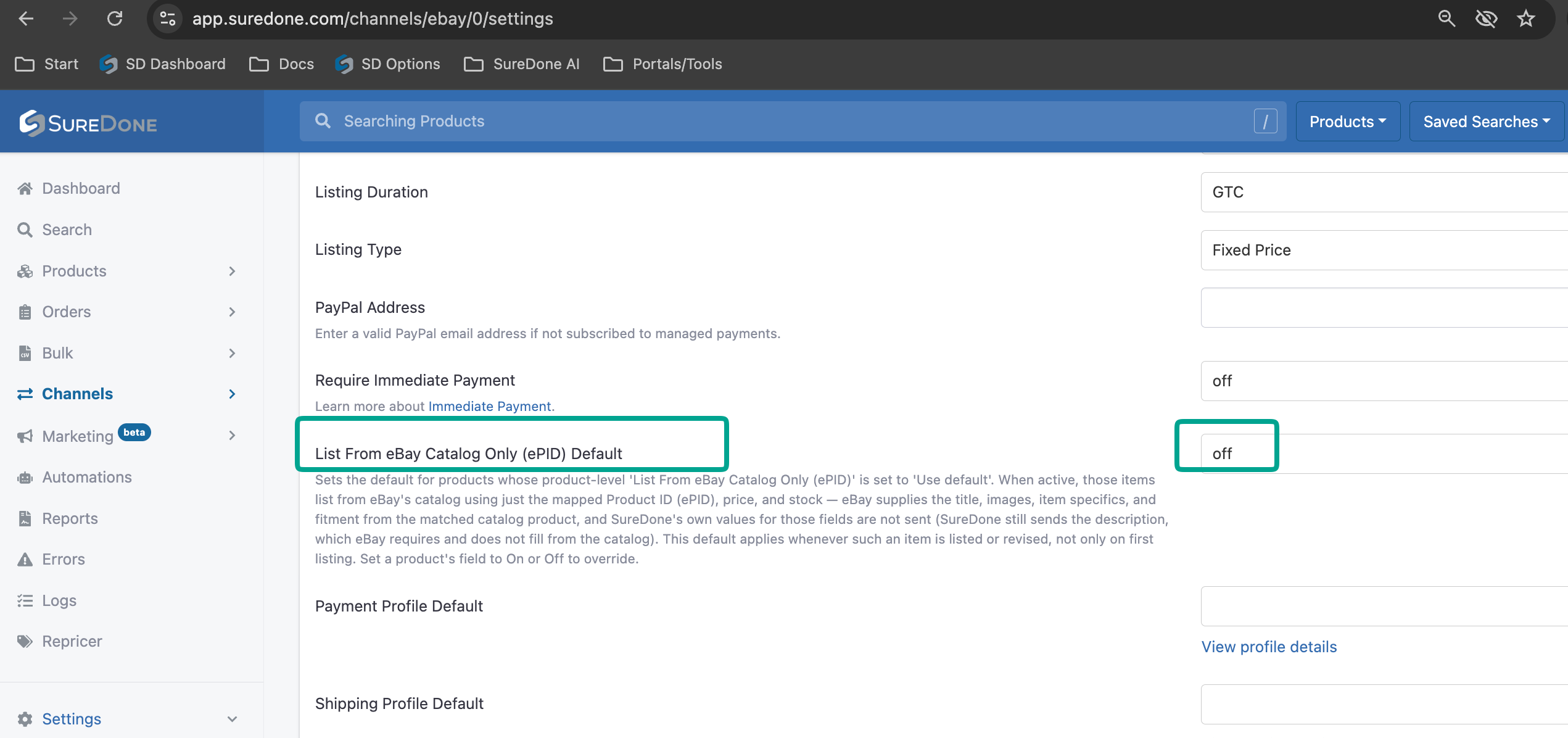
Go to Channels > eBay from the left menu and open the settings for your eBay instance. Currently, the settings panel shows a List From eBay Catalog Only (ePID) Default toggle, whose help text refers to "the mapped Product ID (ePID)" field. The Product ID Field dropdown and Auto Product ID List toggle described in earlier versions of this guide may not appear in your instance's Settings panel — this is a known display gap and does not mean product ID mapping is unavailable.
If you don't see the Product ID Field dropdown, contact SureDone support to confirm or set the field mapping for your account before continuing with the EPID workflow below.
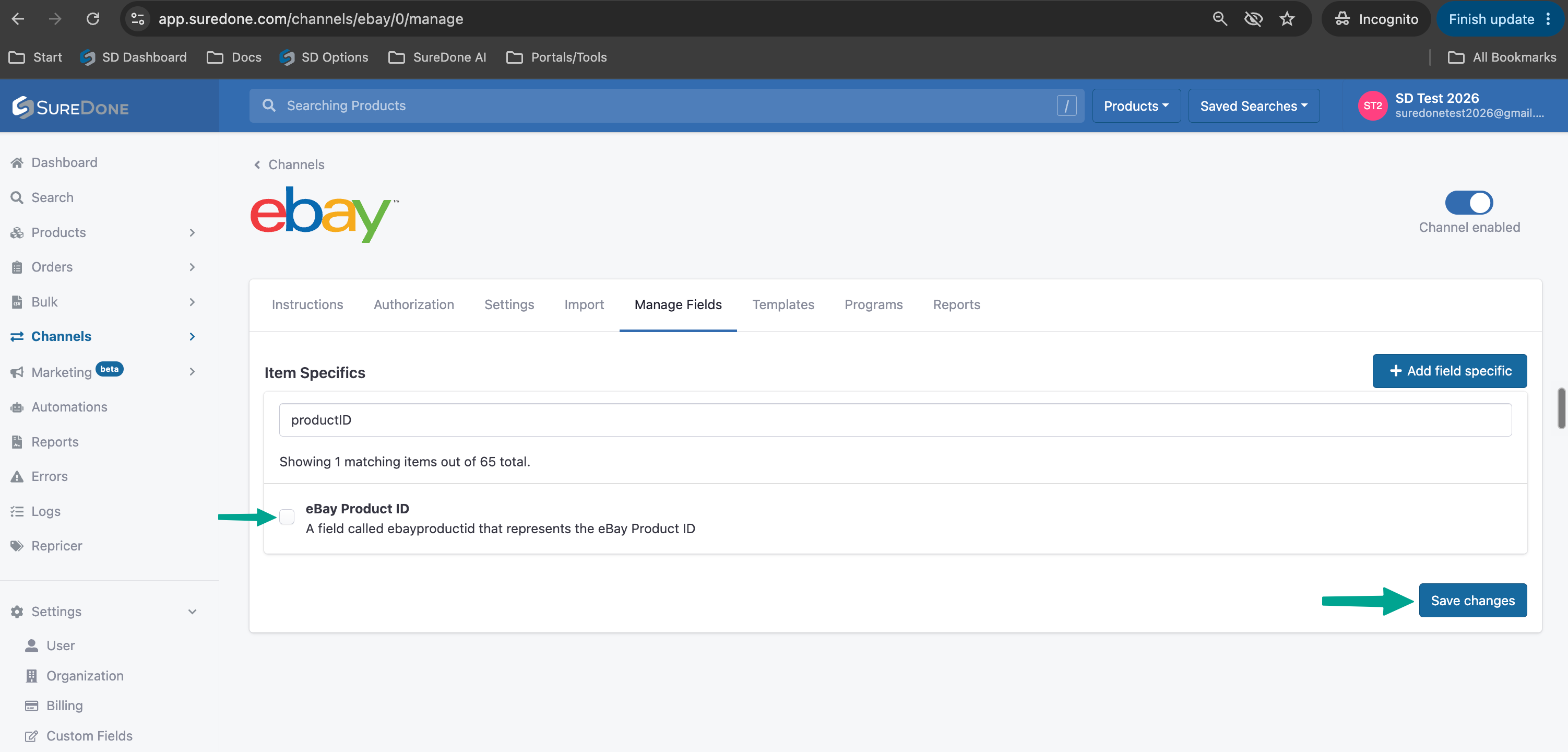
Note: The ebayproductid custom field is typically pre-mapped for new users. If it's missing, you should enable it in your eBay Channel settings by searching for the field in the "Manage Fields" tab, then selecting the field and clicking "Save Settings"
Once this field is mapped, you can assign an EPID directly to a product by updating the product with the EPID value in the mapped Product ID Field. Subsequent relists of the product in SureDone will send the Product ID to eBay, as long as the eBay instance is not skipped.
Searching for and Selecting EPID values
If you don't know the correct EPID value for the product yet, you can search for it directly on the Single Product Editor page in SureDone. The Product ID must still be mapped as described above.Product IDs can be searched for by GTIN, MPN, or Keywords. Searching by GTIN or MPN happens automatically if either the upc field or mpn/manufacturerpartnumber field is filled in. Searches by Keyword are done manually in the eBay Catalog Search section of the single product editor. This section is located in eBay instances after the Category ID field.

If a value has been entered in the upc or mpn/manufacturerpartnumber field, the search will automatically be performed on the field that contains that value. If both fields are filled in, the search will be performed on the value in the upc field.
A keyword search will be performed after entering a value in the Keyword Search field and clicking the magnifying glass icon next to the field. After a search of any type has been performed, the search results will be available in the EPID Search Results field. If there is only one search result, the EPID will automatically be filled in the Product ID field. If the eBay catalog API returns multiple results, you will have to select a value from the EPID Search Results Field before the value is inserted into the Product ID field.