

1. Login to your SureDone account.
2. Go to Products > All Products. In the v3 interface, click PRODUCTS in the top navigation bar and select ALL PRODUCTS from the dropdown.
3. In the Search Bar at the top of the page, enter your query (brand:=apple) and press Enter. Note: There is no longer a separate 'Items' dropdown or magnifying glass button — just type in the search bar and press Enter.
Note: For this example I'm going to search by brand:=apple. For help building a search query to meet your specific needs, see our guide on How To: Search
Note: All search terms must be entered in lowercase – BRAND:=apple won't work, but brand:=apple will.
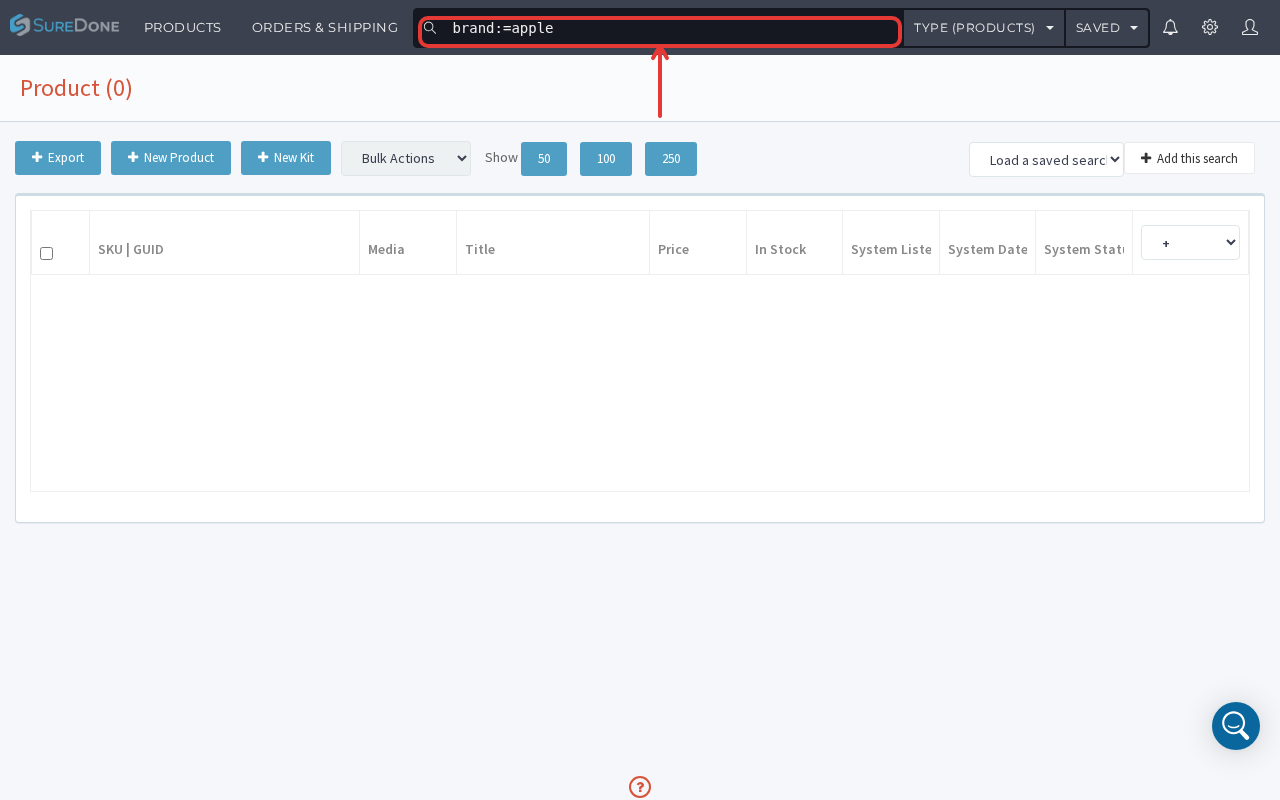
4. The Search results are all Apple® brand products - Now click Export.
Note: If you are trying to export a large file, it may take some time to process and it won't appear until the processing is complete. You'll receive an email when the export is ready.

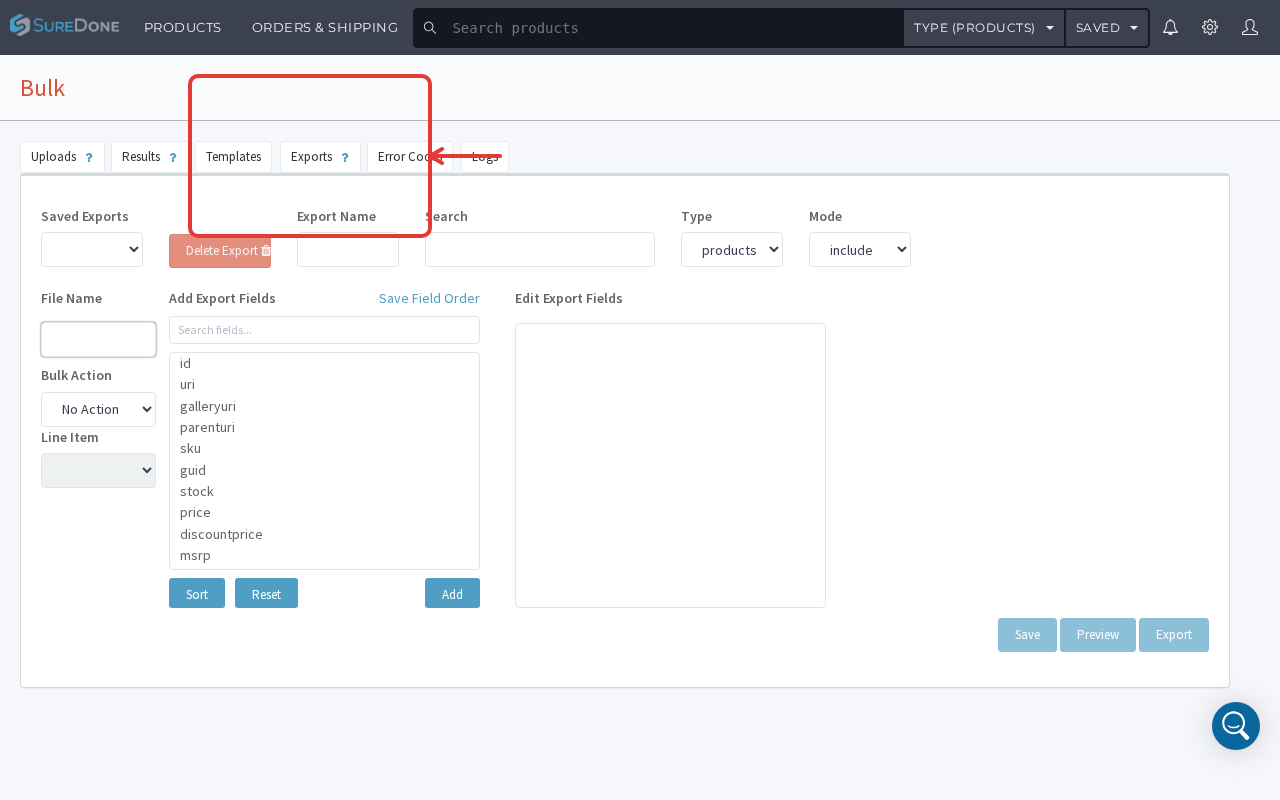
5. Go to Products > Export by clicking PRODUCTS in the top navigation bar and selecting EXPORT. This opens the Bulk page with the Exports tab active. Here you can configure your export fields and click Export to generate the file.
You will receive an email when the export is ready to download.
6. Open the spreadsheet in Excel or another spreadsheet application.

7. Delete all column headers except for guid, stock, price, and title.
Note: The title is not necessary for the upload - it just serves as a reminder as to which items are being edited.

8. Right click on column A and then click Insert to create a new column.

9. In the newly-created column, type action=edit in the header.

10. Edit the stock and price for the items you want to change.
Note: For the purpose of this guide, I will edit the stock and price for the Apple® iPhone 3GS with 8GB Memory – Black and the Apple® iPhone 4 with 16GB Memory - Black.


11. Save the file as .csv (Comma delimited) using any name you choose.
Note: The file has to be saved as .csv (Comma delimited) - no other file format is accepted when uploading to SureDone.
12. Upload the .csv file to SureDone:
Step 1: Click PRODUCTS in the top navigation bar, then click BULK UPLOADS.
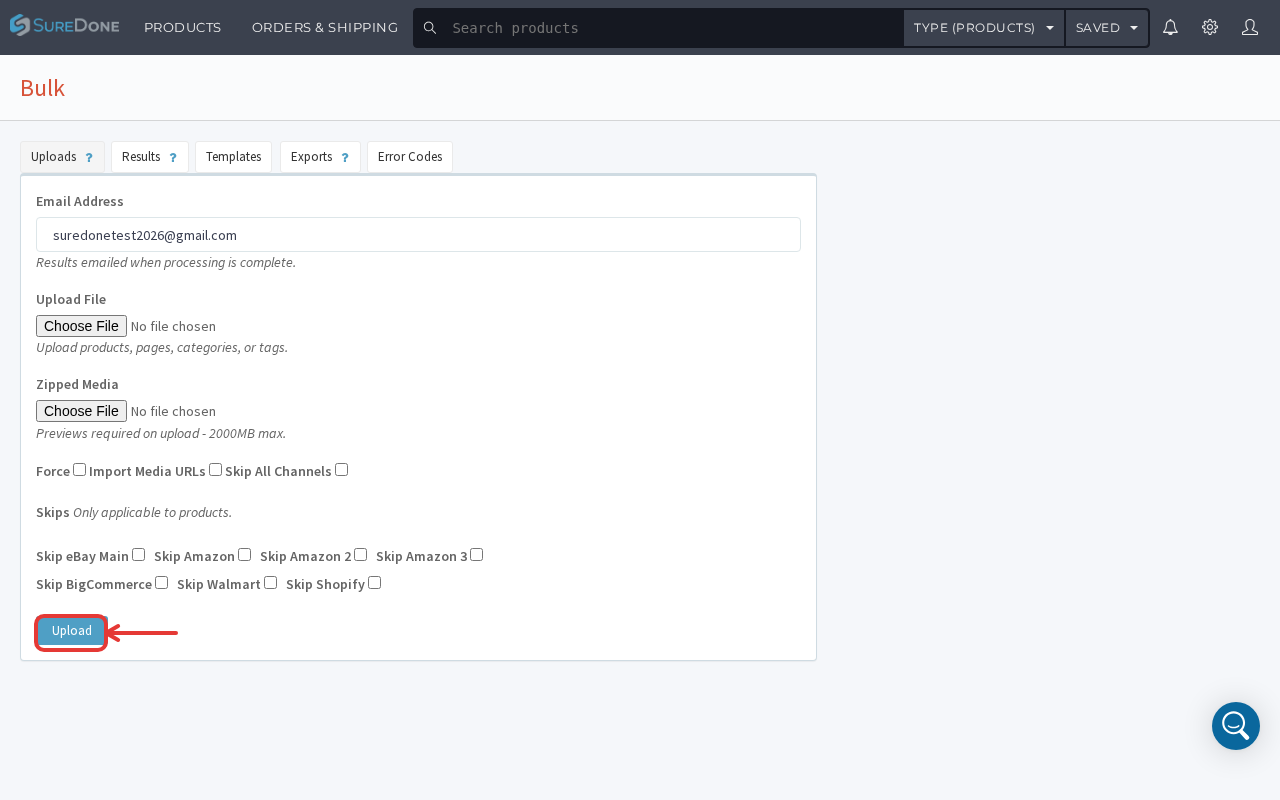
Step 2: Click Choose File and select your .csv file.
Step 3: (Optional) Check Skip All Channels or individual channel checkboxes (Skip eBay Main, Skip Amazon, Skip BigCommerce, Skip Walmart, Skip Shopify) if you don't want data pushed to those channels.
Note: Don't use the Force button unless instructed by SureDone Support.
Step 4: Click Upload.
13. After the .csv file has been successfully uploaded, you should see a new file processing in your Results section. Once the CSV is finished processing, there will be a results file to download. Note: Upload results will also be emailed to you.