

If a product is already in Amazon's catalog (it has an ASIN), you don't need to create a new Amazon product page for it. You can add your offer to the existing ASIN straight from SureDone, one product at a time in the product editor or many at once with a bulk upload.
Both methods use Offer only, which sends Amazon just your offer: price, quantity, condition and shipping template. Amazon's catalog details, such as title, images and description, stay as they are. For more on how it works, see Amazon Offer Only.
For products that aren't in Amazon's catalog yet, you need to create a full listing with a product type instead.
Before you start
- Find the product's ASIN. It's listed under "Product details" on the product's Amazon page.
- Make sure you're allowed to sell in that category and brand. Amazon restricts some categories and brands, and listings in them are rejected until you're approved.
- Decide whether Offer only should be on for your whole account or just for these products. You can turn it on for every product under Channels > Amazon > Settings, or set it per product as shown below.
Listing one product in the product editor
- Open the product and go to its Amazon section. If you have more than one Amazon account connected, each has its own section, such as Amazon 2.
- Enter the ASIN.
- Set Offer Only to "on". Leave it on "default" if Offer only is already on in your Amazon settings.
- Optionally, enter an Amazon Price. If you leave it blank, the product's main price is used.
- Make sure the product has a Condition and stock in its General section.
- Click Relist/Publish Item at the bottom of the editor.
Browse Node ID is marked with an asterisk, but you don't need it when listing on an ASIN with Offer only on.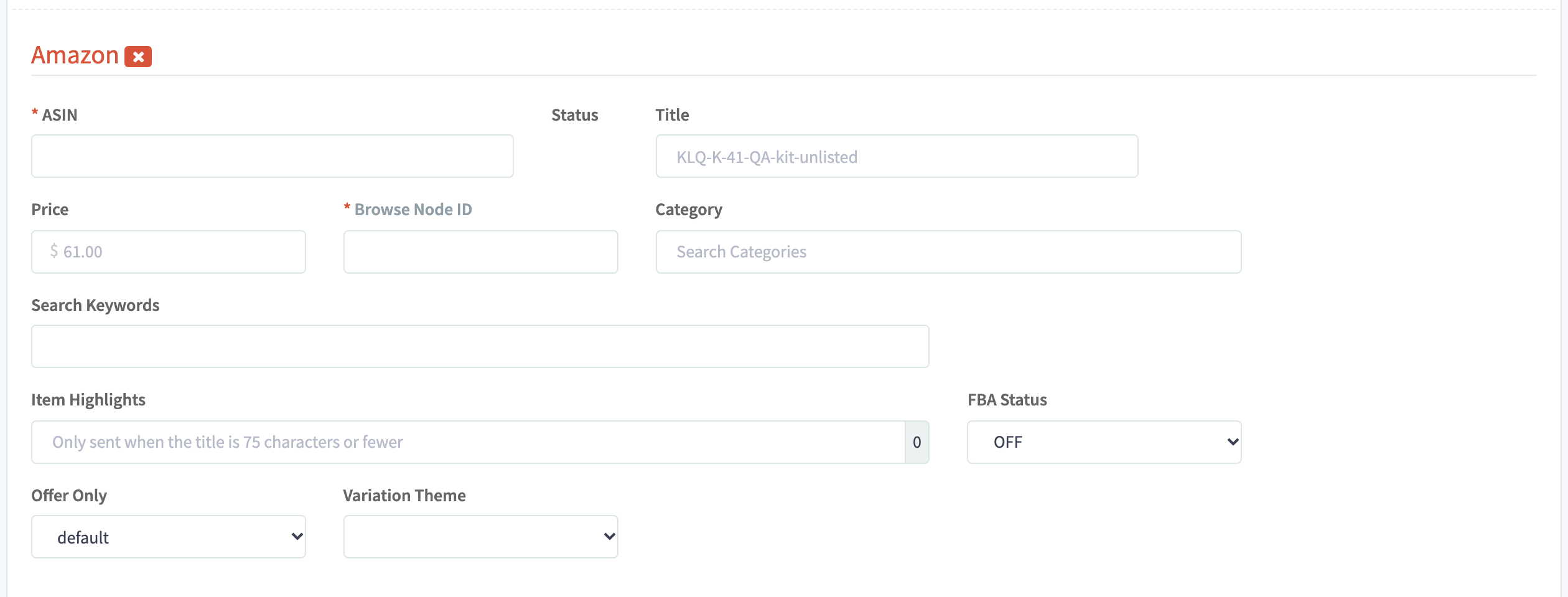
Listing many products with a bulk upload
Go to Bulk > Uploads and upload a CSV file with one row per product. You can download a starting template from the Templates tab.
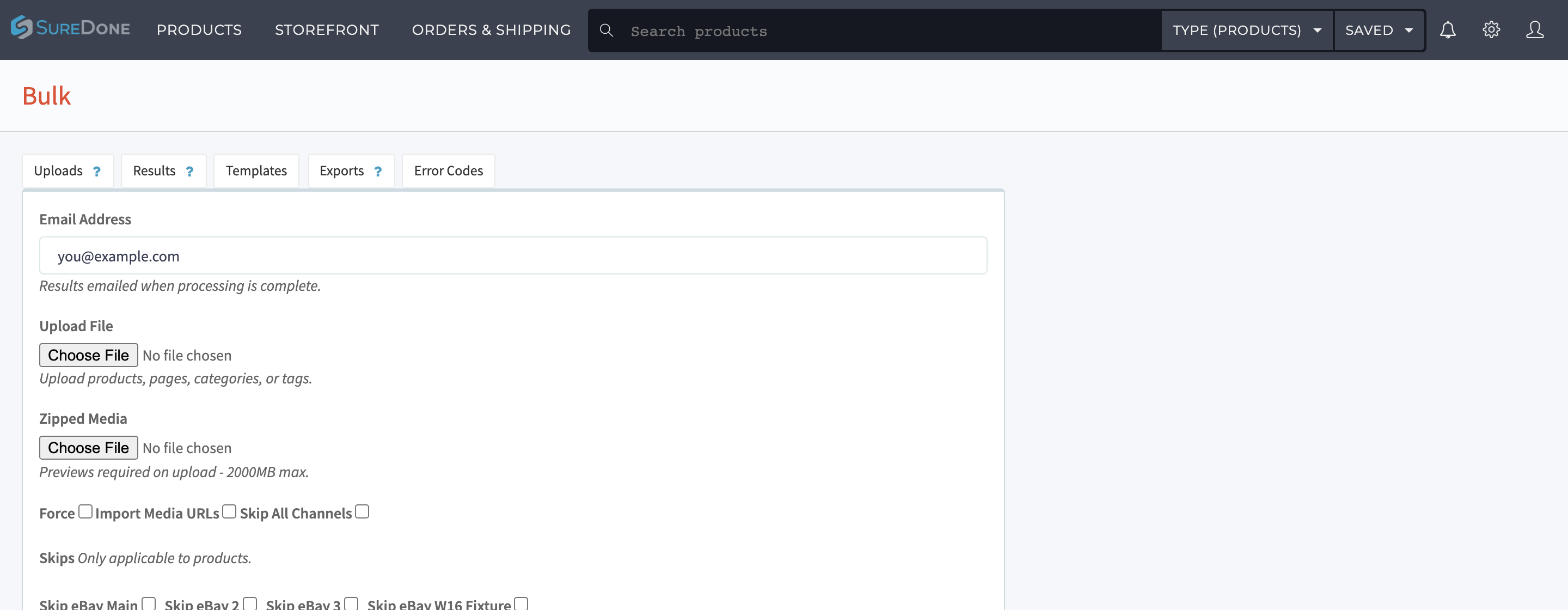
Include these columns:
- action: relist for products already in SureDone, or add to create the product in SureDone and list it in one step. Don't use edit: it only updates products that are already on Amazon, so it won't create a new listing. Don't use start either: it saves the product as a draft without listing it.
- guid: the product's SKU in SureDone.
- amznasin: the ASIN. For a second Amazon account, use amzn2asin, and so on.
- amznofferonly: on. You can leave this column out if Offer only is already on in your Amazon settings.
- condition, price and stock. Add amznprice if you want a different price on Amazon.
For example:
When the upload finishes, check Bulk > Results, or open Logs and filter by the amazon channel to see whether each listing was accepted.
