

SureDone works with Amazon FBA in two directions, and each one is controlled somewhere different.
- Outbound — you tell Amazon which of your listings Amazon should fulfill. Set per product, in the product editor or by bulk CSV.
- Inbound — SureDone reads your FBA stock back from Amazon and keeps it beside your own merchant stock. Set per channel, in the Amazon channel settings.
1. Turn FBA on or off for one product
Go to Products → All Products and click a product to edit it. In the section list on the left, choose Amazon. The control is the FBA Status dropdown.
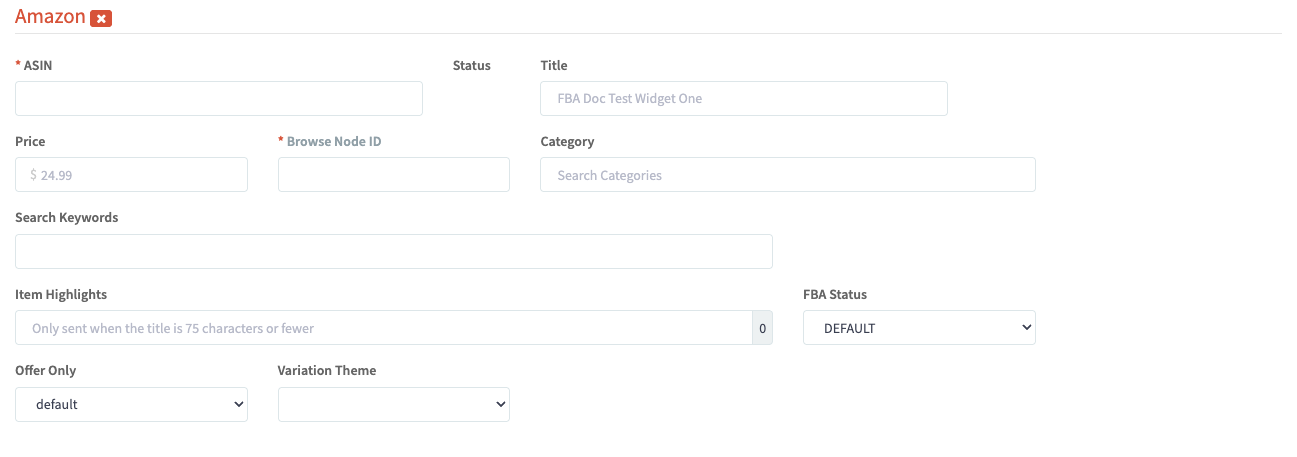
If you have more than one Amazon channel connected, each one has its own FBA Status field in its own section — Amazon, Amazon 2, and so on. Setting one does not affect the other.
What the values mean
| Value | Meaning |
|---|---|
blank | Never set. Treated as merchant-fulfilled. |
OFF | You fulfill the order yourself. |
DEFAULT | FBA on. The fulfillment center is chosen from the marketplace the listing is on — see below. |
AMAZON_NA | FBA on, North America. |
AMAZON_CA | FBA on, Canada. |
AMAZON_EU | FBA on, Europe. |
AMAZON_JP | FBA on, Japan. |
AMAZON_CN | FBA on, China. |
How DEFAULT resolves
DEFAULT does not read a country setting on your account. SureDone maps the marketplace your Amazon channel sells on to a region:
| Marketplace country | Fulfillment center |
|---|---|
| IE, ES, UK, FR, BE, NL, DE, IT, SE, PL, EG, TR, SA, AE, IN | AMAZON_EU |
| SG, AU, JP | AMAZON_JP |
| Anything else | AMAZON_NA |
DEFAULT never resolves to AMAZON_CA or AMAZON_CN. If you fulfill from Canada or China, pick that value explicitly.
2. Turn FBA on or off in bulk
The toggle above is easy for a handful of items. For more than that, use the bulk editor.
The column header you are looking for is amznfba — all lowercase, no spaces. For a second Amazon channel it is amzn2fba, with the channel number in the middle, matching every other channel field.
Start from a template or an export:
- Bulk → Templates → Products: Download gives you a CSV containing every supported header.
- Bulk → Exports gives you a CSV of your current products.
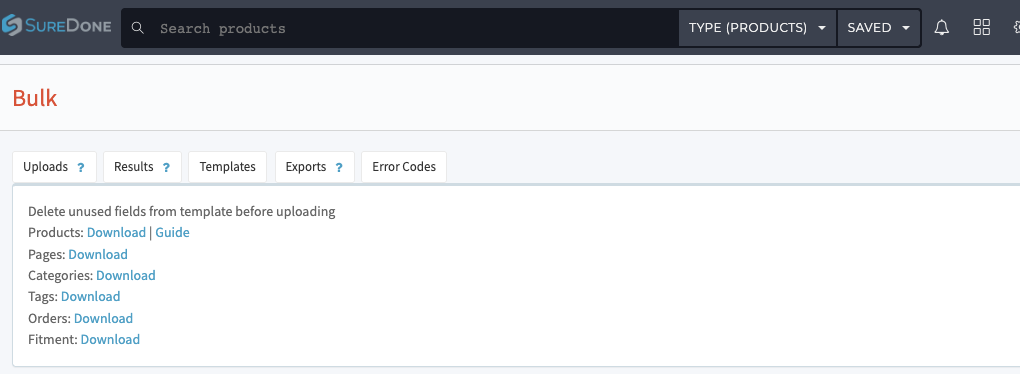
Keep the file small
Good practice with the bulk editor is to include only the columns you are actually changing. To switch FBA off for a few products, three columns is enough:
action,guid,amznfba
edit,MY-SKU-1,OFF
edit,MY-SKU-2,OFF
edit,MY-SKU-3,OFF
- action is always the first column. It tells the editor what to do with each row. Use edit to change existing products.
- guid identifies the product.
- amznfba takes any of the values from the table above.
To switch FBA on for North America, use AMAZON_NA instead of OFF. To let SureDone pick the region, use DEFAULT.
Upload it
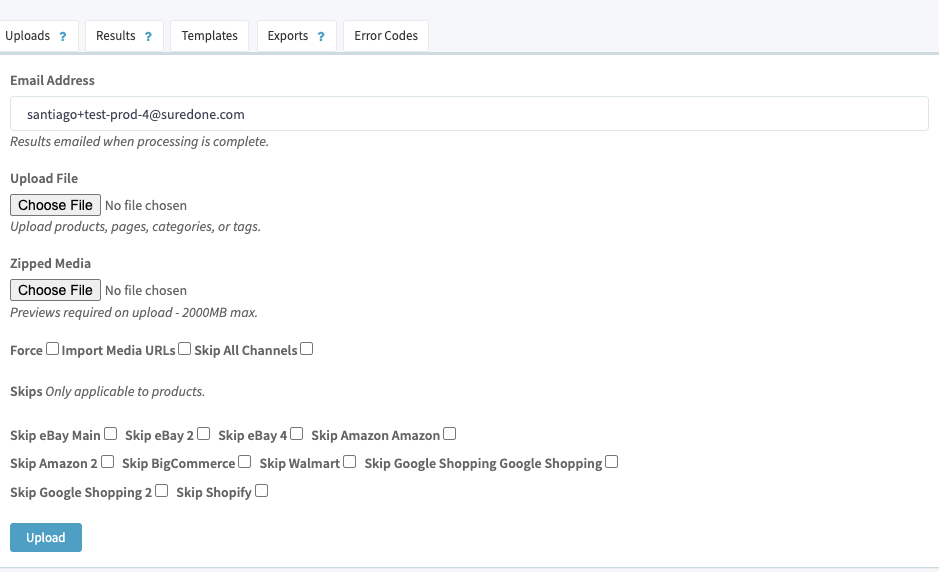
Go to Bulk → Uploads, choose your file, and click Upload. Results are emailed to you and also appear under Bulk → Results, where you can download a per-row results file showing exactly which rows succeeded.
What you will see in an export
SureDone stores amznfba as a small JSON object, so that is the long form you will see in an export and in the products list:
| You upload | SureDone stores |
|---|---|
DEFAULT | {"fulfillment_center":"DEFAULT","status":"on"} |
AMAZON_NA | {"fulfillment_center":"AMAZON_NA","status":"on"} |
OFF | {"fulfillment_center":"","status":"off"} |
You never have to type the JSON form — the short values are enough — but if you export, edit and re-upload, the JSON already in the cell is accepted as is.
3. Import your FBA stock from Amazon
Go to Channels → Amazon → Settings and scroll to the FBA group.

There are three separate settings. They are independent — turn on only the ones you want.
| Setting | What it does |
|---|---|
| FBA Inventory Import | Reads your FBA quantities from Amazon into SureDone. This is the setting formerly called Sync FBA Inventory. |
| FBA Status Import | Updates each product's FBA status from Amazon's periodic listing reports, so a change made in Seller Central shows up in SureDone. |
| FBA Orders Import | Imports orders that Amazon fulfilled out of FBA. |
What happens when you enable FBA Inventory Import
Saving this setting to on does four things:
- Creates a field called FBA Stock (amznstockfba) on your products, if it does not already exist. It is read-only, because Amazon owns this number.
- Adds FBA Stock to the fields your account counts as stock. From that point Total Stock = your merchant stock + your FBA stock
- Requests an FBA inventory report from Amazon to load your starting quantities.
- Subscribes your account to Amazon's FBA inventory-change notifications.
Turning the setting back off stops the imports and removes FBA Stock from your stock sources. The FBA Stock field itself stays on your products, holding its last known value. It is not deleted.
How often it refreshes
- Continuously. Amazon pushes a notification whenever your FBA availability moves, and SureDone applies it as it arrives. This is the main path, and it is close to real time.
- Once a day. A full reconciliation runs against Amazon's FBA inventory data, to catch anything the notifications missed.
4. Where FBA stock appears
On the product
Go to Products → All Products and click a product to edit it. In the General section, FBA Stock sits directly beside In Stock. It is shown as a plain read-only value, because it reflects what Amazon physically holds.
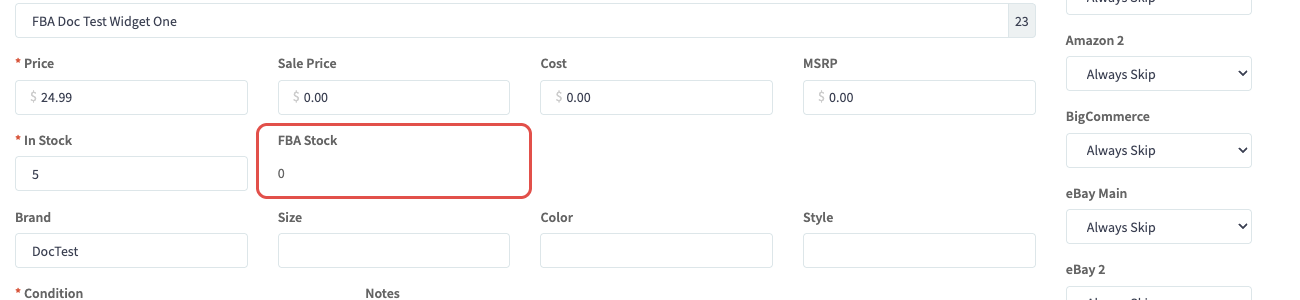
The field only exists once FBA Inventory Import has been enabled.
On the products list
Both FBA fields can be added as columns on the products overview. Click the + at the right-hand end of the column headers and pick:
- User FBA Stock — the FBA quantity.
- Amzn FBA — the FBA status.

Some things to consider with Amazon FBA
FBA stock is a completely separate and distinct number as far as Amazon is concerned — it is the total of everything Amazon physically holds in its fulfillment centers. Because of that, SureDone tracks your stock as two numbers:
| Number | Field | Who controls it |
|---|---|---|
| In Stock | stock | Your own merchant stock. You control this. |
| FBA Stock | amznstockfba | What Amazon holds in its fulfillment centers. Amazon controls this. |
This matters, because it affects how you list and when your listings end.
When FBA Status is on
SureDone does not send a quantity to Amazon for that listing at all. Amazon sells against its own FBA number and ignores yours. So:
- Say you have 1 unit in FBA and 5 units of merchant stock, and a customer orders one. Amazon only considers the stock in its own warehouses. Once that order is fulfilled, Amazon considers you out of stock and will end the listing. To keep selling, either send more stock into FBA, or set FBA Status to OFF and fulfill it yourself.
- Because SureDone stops sending quantity, changing your merchant In Stock has no effect on an FBA listing.
When FBA Status is off
SureDone sends a quantity as normal. Which number it sends depends on whether FBA Inventory Import is on:
- Inventory import off. Only your merchant stock counts. So if all of your stock is physically at Amazon, SureDone sends zero and the offer goes out of stock. Switch FBA Status on — to DEFAULT, or to the specific region holding the stock — to sell from FBA instead.
- Inventory import on. FBA units count toward Total Stock, so SureDone sends merchant stock plus FBA stock. The offer stays in stock, but the quantity includes units sitting in Amazon's warehouses that you cannot ship yourself.
Using FBA to ship your non-Amazon orders
Amazon's Multi-Channel Fulfillment (MCF) lets FBA ship orders that came from somewhere else — your storefront, eBay, Walmart. The settings are under Channels → Amazon → Settings → Orders:
- Auto MCF Search Rule — an orders search that limits which orders are eligible.
- Auto MCF Fulfillment Policy — the fulfillment policy sent to Amazon.
An order is only sent to MCF when all of the following are true:
- FBA Inventory Import is on. Without it SureDone has no FBA quantity to check against, and the export is refused.
- The order did not come from Amazon.
- The shipping country matches your account's business country.
- The order is not already complete, cancelled or refunded.
- Every line item maps to a product that is linked to Amazon and has FBA Status on.
- Every line item has enough FBA Stock to cover the quantity ordered.
