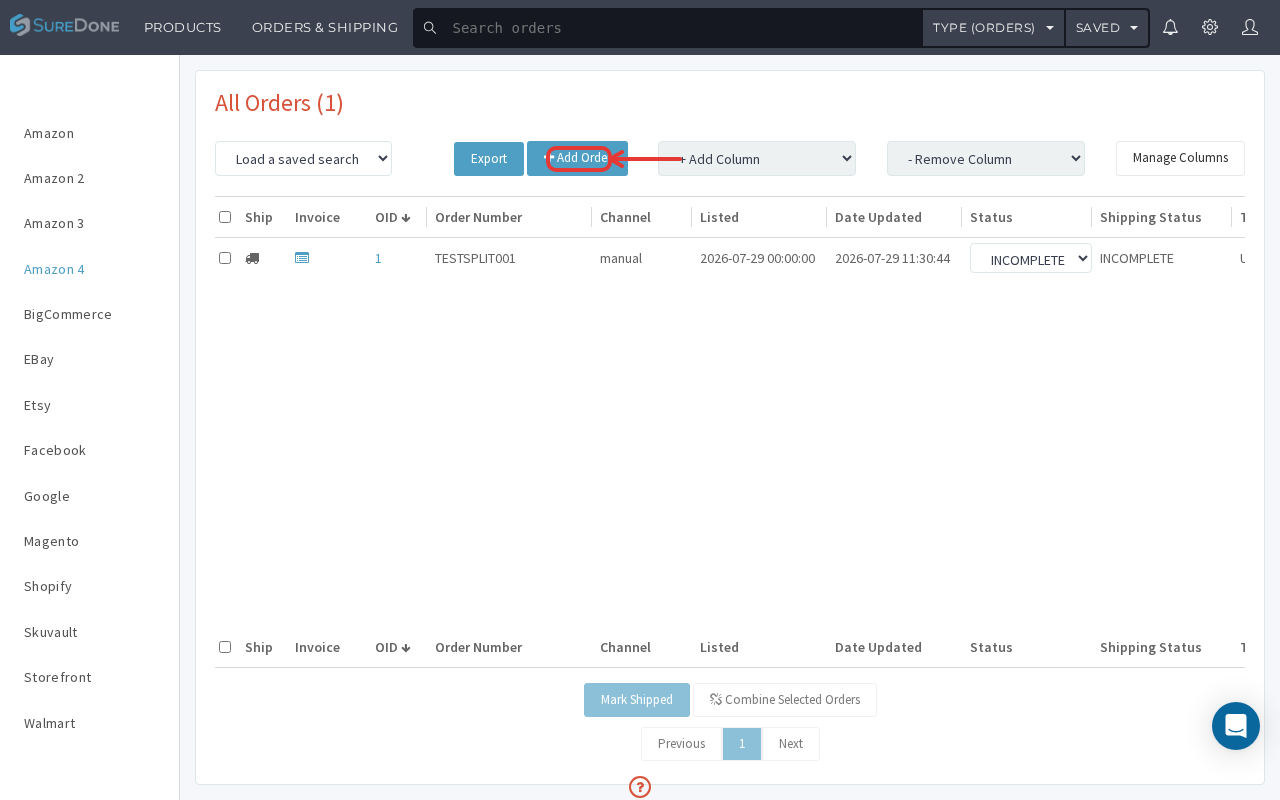
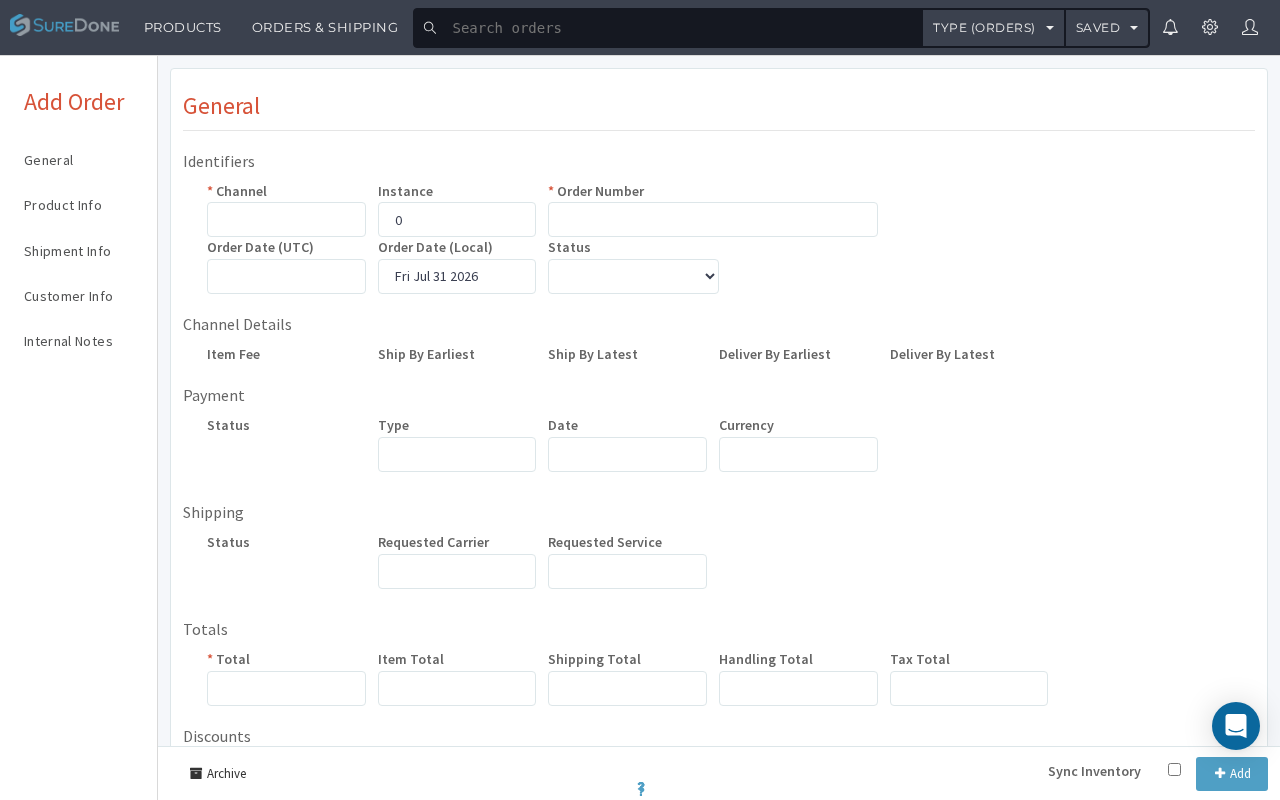
Go to the Orders tab and click the Add Order button. The Add Order page uses a left-hand section menu for easy navigation with sections including General, Product Info, Shipment Info, Customer Info, and Internal Notes. Fill in the Channel and Order Number under General.
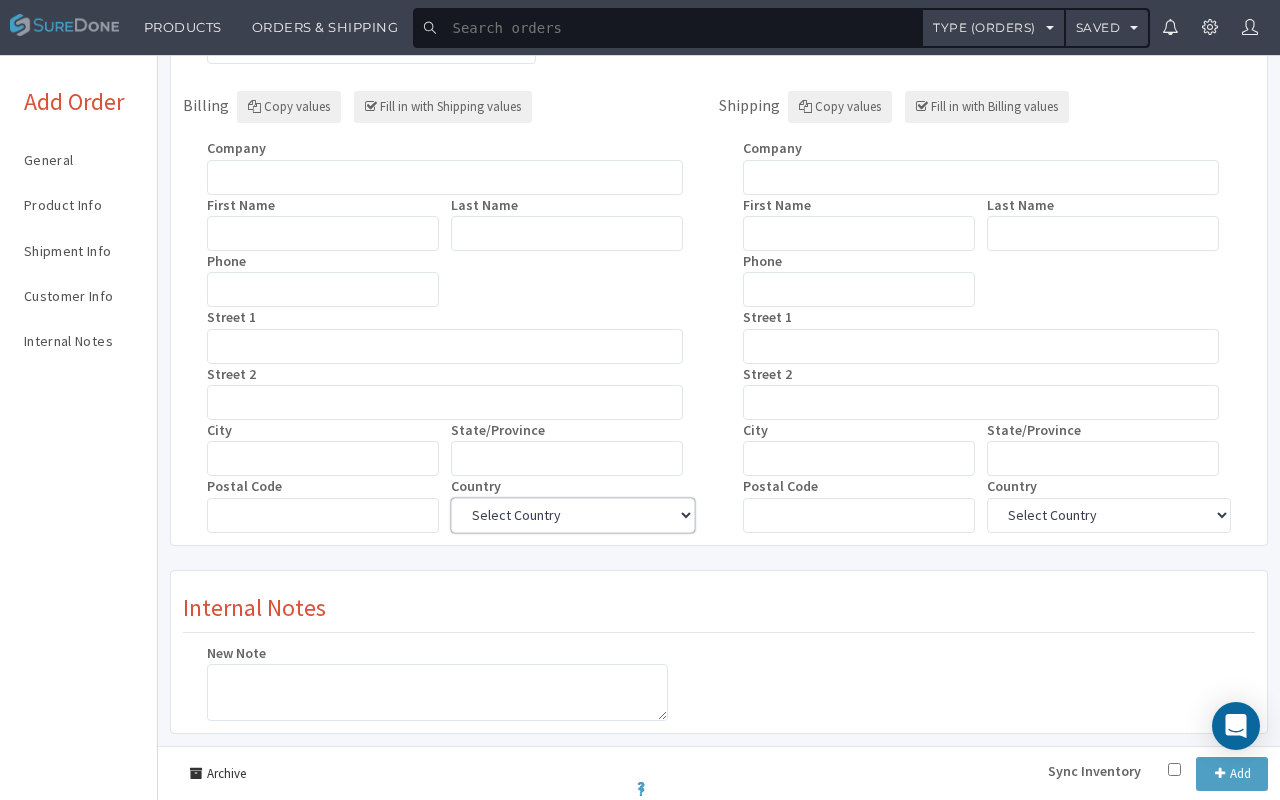
Once this is done, a new page will open with the left-hand section menu described above — General, Product Info, Shipment Info, Customer Info, and Internal Notes — each containing related product and customer information. Please see the example screenshots below:
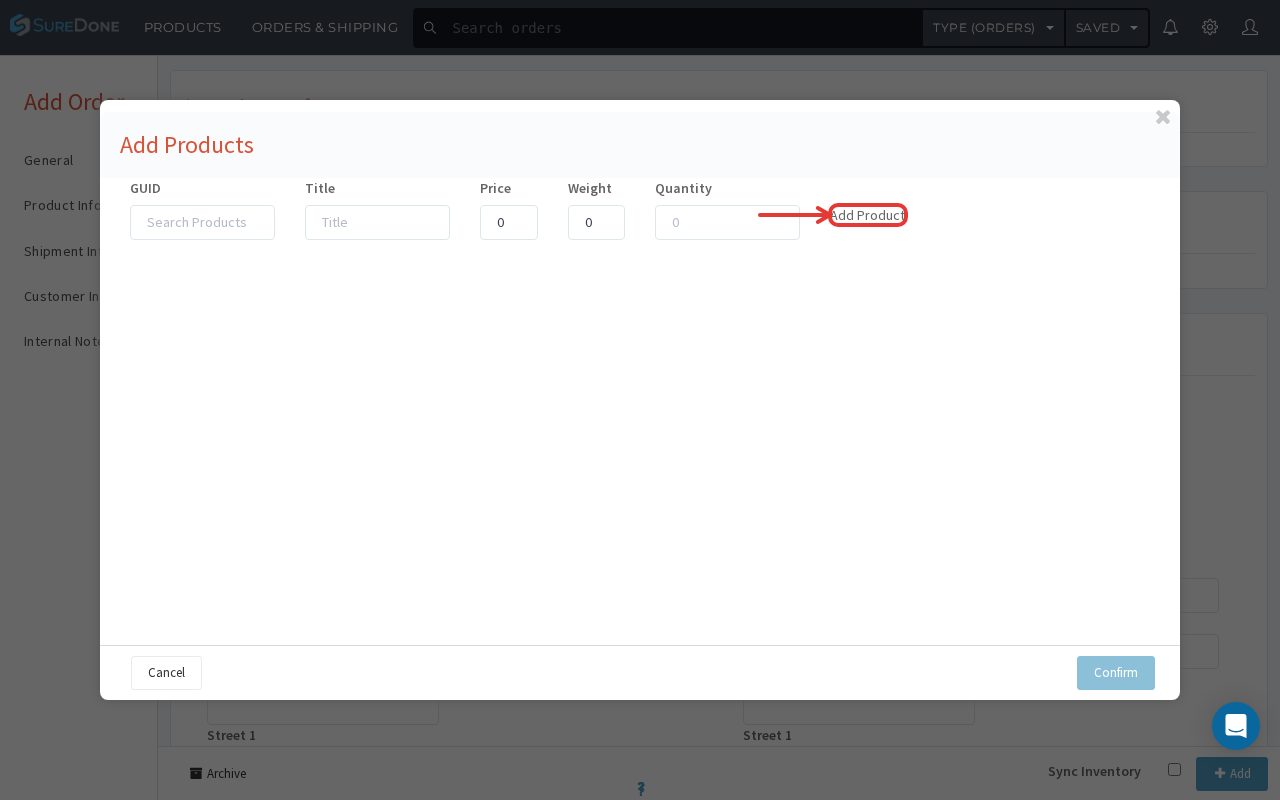
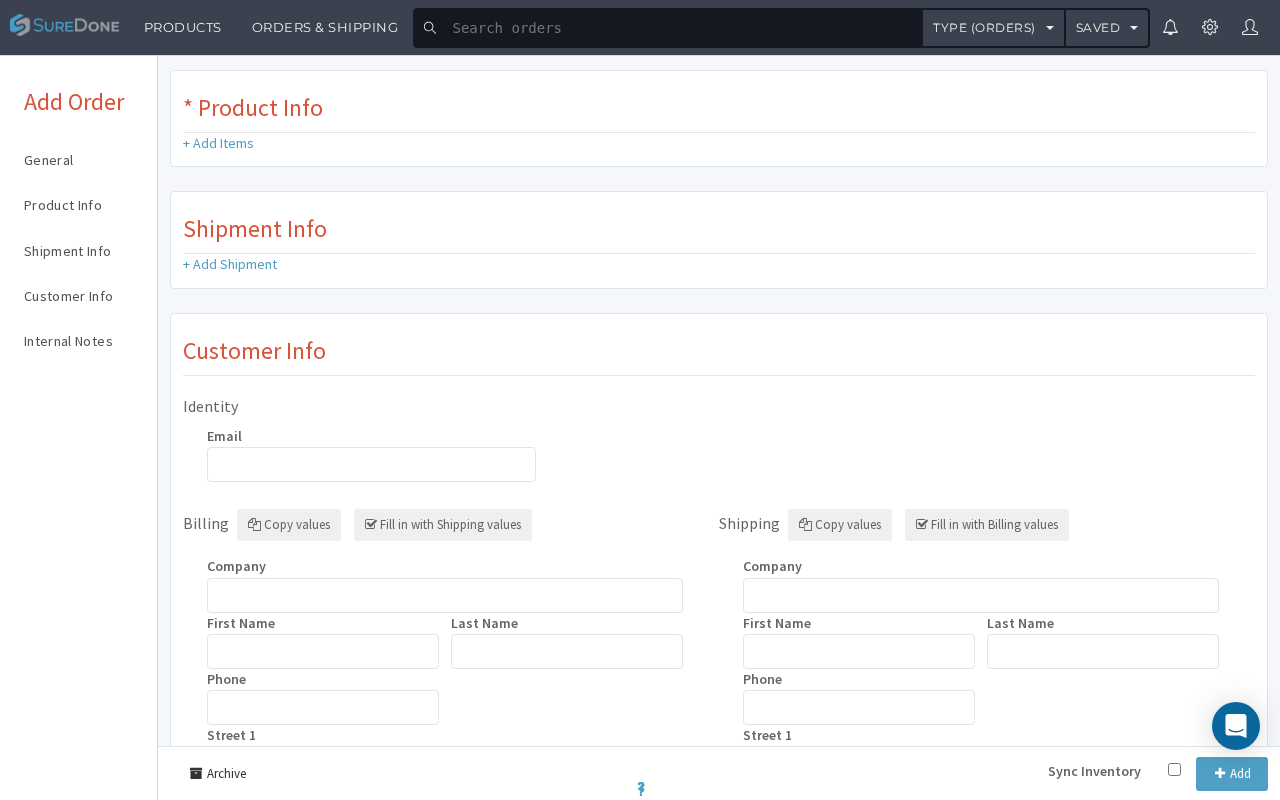
Click Product Info in the left menu, then click + Add Items. In the Add Products modal, paste the product's GUID (copied from the All Products page) into the GUID field, set the Quantity, then click Add Product followed by Confirm.
After the product has been added, click Customer Info in the left menu and proceed with filling in the customer's information and additional required details in the Shipping Info and Billing Info tabs.
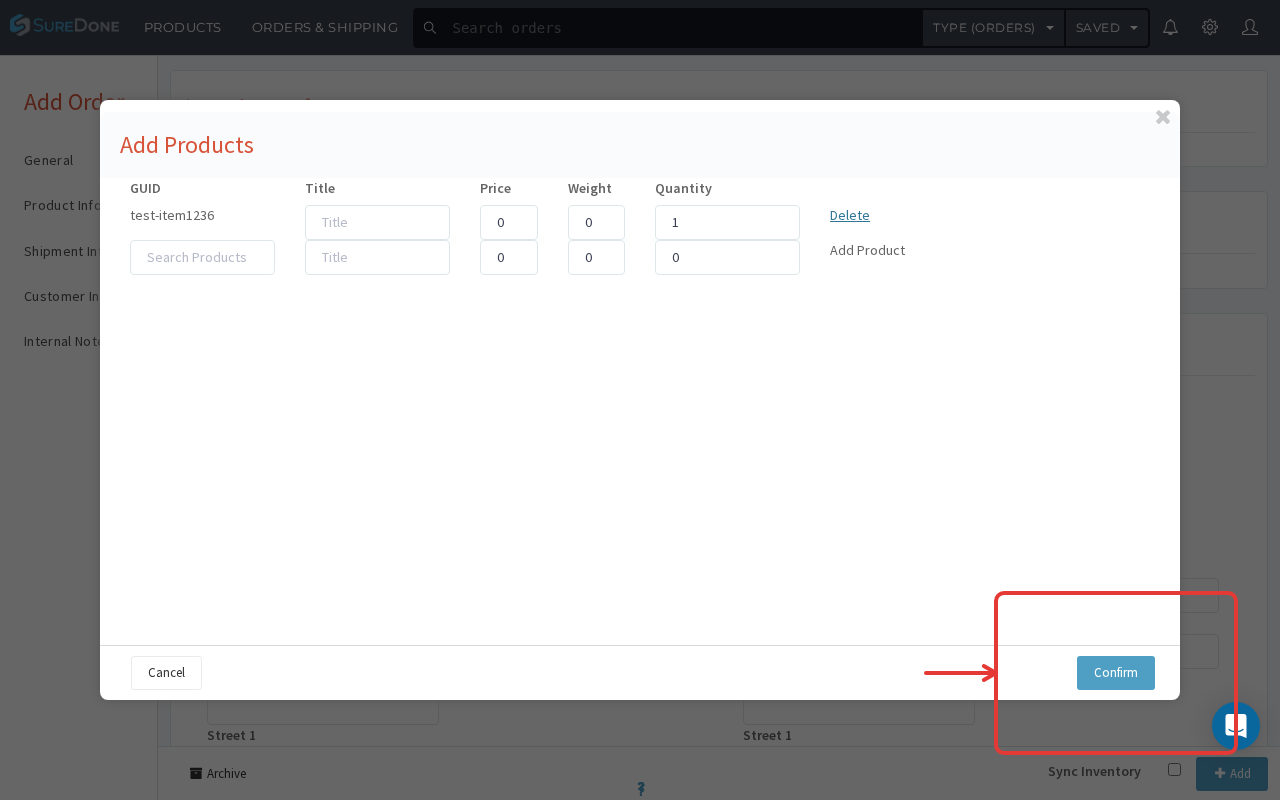

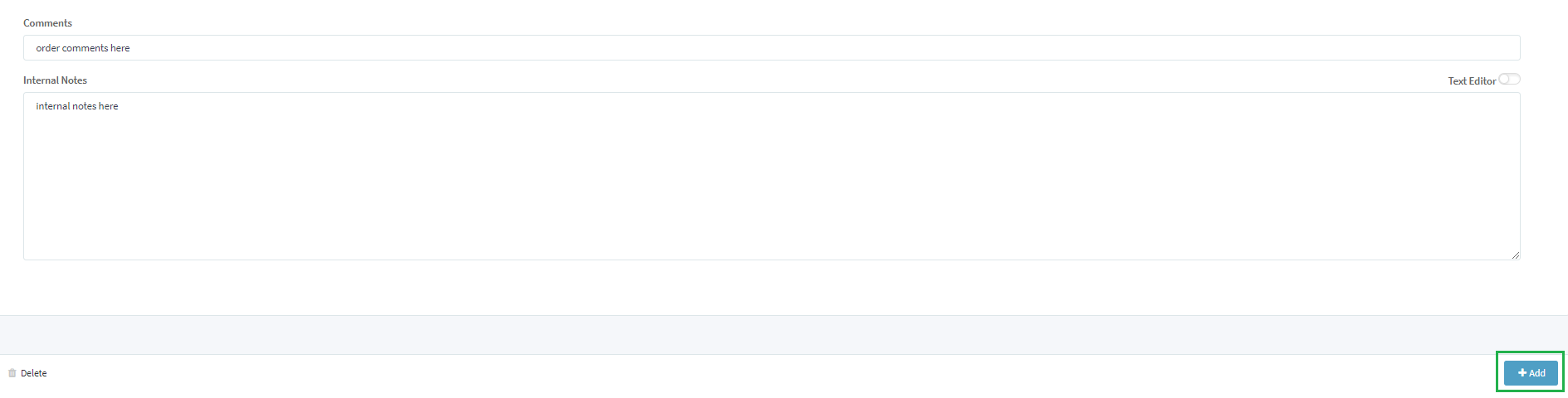
The last step after all of the details have been added to the manual order is to click the +Add button at the bottom of the page and the order would be saved and displayed when you reopen the Orders tab: