

Creating bundles are pretty much the equivalent to creating kits. The only difference is that bundles are quantities of a single component as opposed to multiple components.
Please note that you CANNOT include a kit or bundle inside another bundle at this time. For example, if you want to create a wheel bundle consisting of four wheels, you cannot use two bundles of two wheels to create this. Instead, you will create the bundle with 4 wheels.
Also note - the stock level of a bundle is automatically determined by SureDone based upon the stock level of the bundle's components in SureDone. At this time, we ONLY use the stock field in determining this. We do not incorporate custom fields that may be used by automations or other sources for stock.
In order to create a bundle, the component included in the bundle must first exist. For example, if we're going to create a bundle of four tires, the tire needs to exist first.
The primary steps for creating a bundle are:
- Make sure the component exists in SureDone
- Create a bulk file and fill out a row like you would for a normal product(i.e. SKU, Title, Description, etc.)
- Add two new columns - "iskit" and "kitlinks"
- Set the value of the "iskit" column to 1 for the product
- Put the component and quantity into the "kitlinks" column in a JSON format
- Submit the bulk file
Step 1

Step 2

Step 3
Step 4

Step 5
Now comes the fun part where we actually build the bundle.
If you look at our picture above of the tire, you'll see its GUID is tirez-awesome-255-55-18-Z.
We need to create an entry for the kitlinks column that ties these part together with the quantity of the part. We're going to use a special format called JSON in order to do this.
You wrap the whole thing in brackets so it looks like:
[["tirez-awesome-255-55-18-Z",4]]
Note that you aren't limited to just 1 items in a bundle. If you want more, just build a kit.
As we mentioned before, we're using a special format called JSON to show what goes into a bundle. To verify that your JSON is correct, you can go to http://jsonlint.com/, paste in your complete JSON entry and click on the "Validate JSON" button at the bottom. It will then tell you whether you have an error or whether everything is great.
Also, be sure when creating your CSV files that the editor you're using isn't replacing your straight quotes (") with angled quotes. This can cause you to receive the following error: "kitlinks:96 - Incorrect format for linking items to kits, must be valid JSON" when you upload the file. If you are receiving this error and you've confirmed that the value in the kitlinks field is valid JSON, this may be an indication that something has gone wrong with the formatting of the straight quotes (") in your CSV file.
So now we're going to paste our JSON into our bulk sheet:

Now, as usual, we'll save this file as a CSV.
Step 6
Upload the bulk file to SureDone:
- Go to Bulk Upload and choose your CSV under Upload File (or attach a Zipped Media file if you're including images).
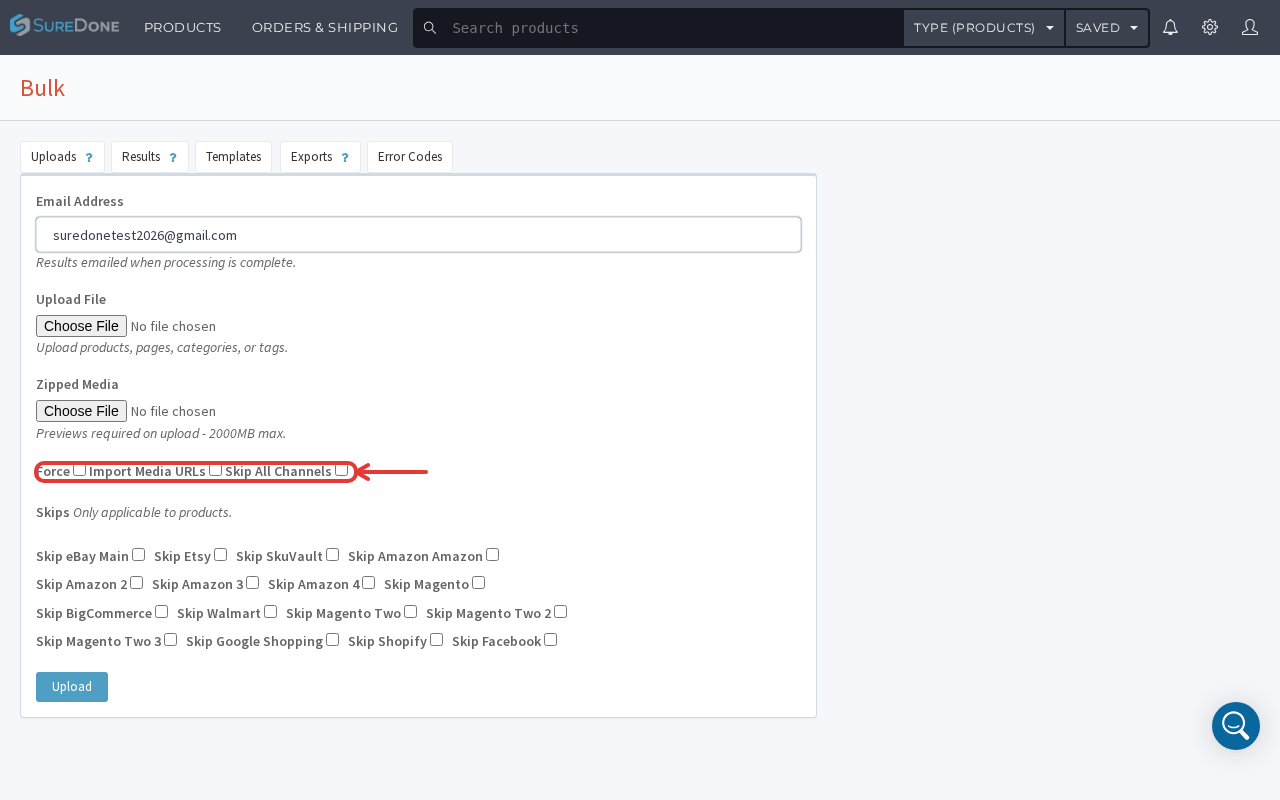
- Review the checkboxes below the file fields:
- Force - check this if you're editing existing items (required for the bundle-linking update described below).
- Import Media URLs - check this if your file includes image URLs to import.
- Skip All Channels - check this to process the update without pushing changes to any connected channel.
- The individual Skip [Channel Name] checkboxes let you exclude specific channels instead of skipping all of them.
- Click Upload to submit the file.
See Bulk Processing for more information if you haven't done bulk, or visit our online learning center for comprehensive training on bulk.
Completion
Go back into your All Products view of SureDone and you should see your new bundle. At this point there will not be an indicator that this is a bundle, but this will be adjusted at a later time once we build kits and bundles into our standard user interface.

Creating a bundle via bulk - with items already existing in SureDone.
While creating a bundle with items already existing in SureDone, you need to use the bulk file in the format below (action=edit) and ensure that the Force checkbox is checked on the Bulk Upload page while submitting your bulk file.

Alternative: Kit Details UI
You can also link kit/bundle components directly on a product without building a CSV:
- Open the product and go to its General tab.
- Click Show Kit Details.
- In the table that appears, add each component's GUID and Quantity.
- Save the product.
This works well for quick edits to an existing bundle; use the bulk/Force method above for larger or repeated updates.