

The Logs page records what happened every time SureDone did something with your products, orders and channels: edits in the product and order editors, bulk uploads, automations, API calls and the automatic channel syncs. Use it to find out why a product didn't update on a channel or an order didn't import.
Logs are kept for 45 days.
Opening the Logs page
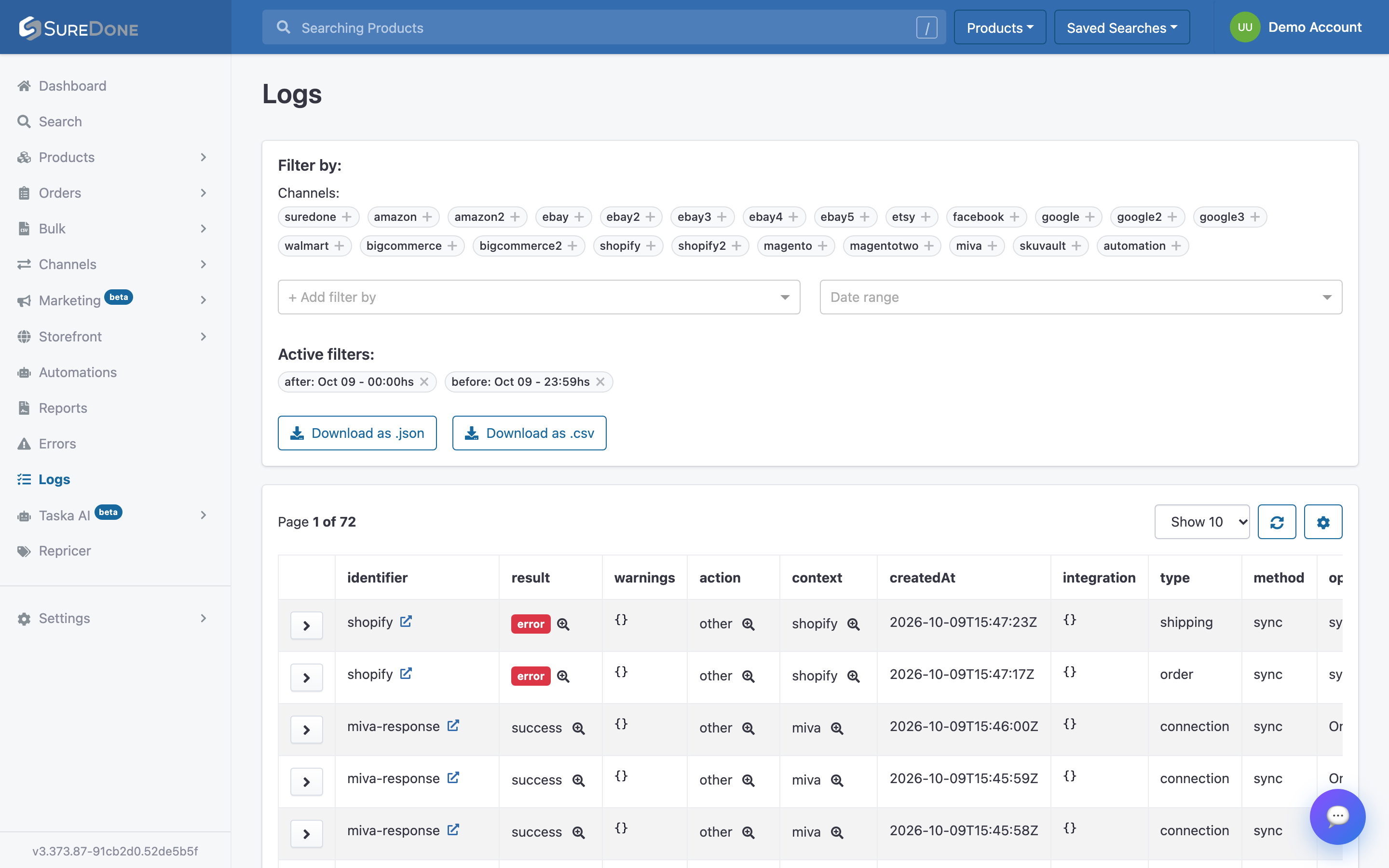
Click Logs in the left sidebar. The page opens showing today's logs, newest first.
Filtering logs
Use these controls at the top of the page to narrow the list:
- Channels: click a channel to show only its logs. The list includes every channel connected to your account, plus suredone and automation.
- Date range: choose Today, Yesterday, Past 7 days, Past 30 days, Month to date, or Custom for any range within the last 45 days.
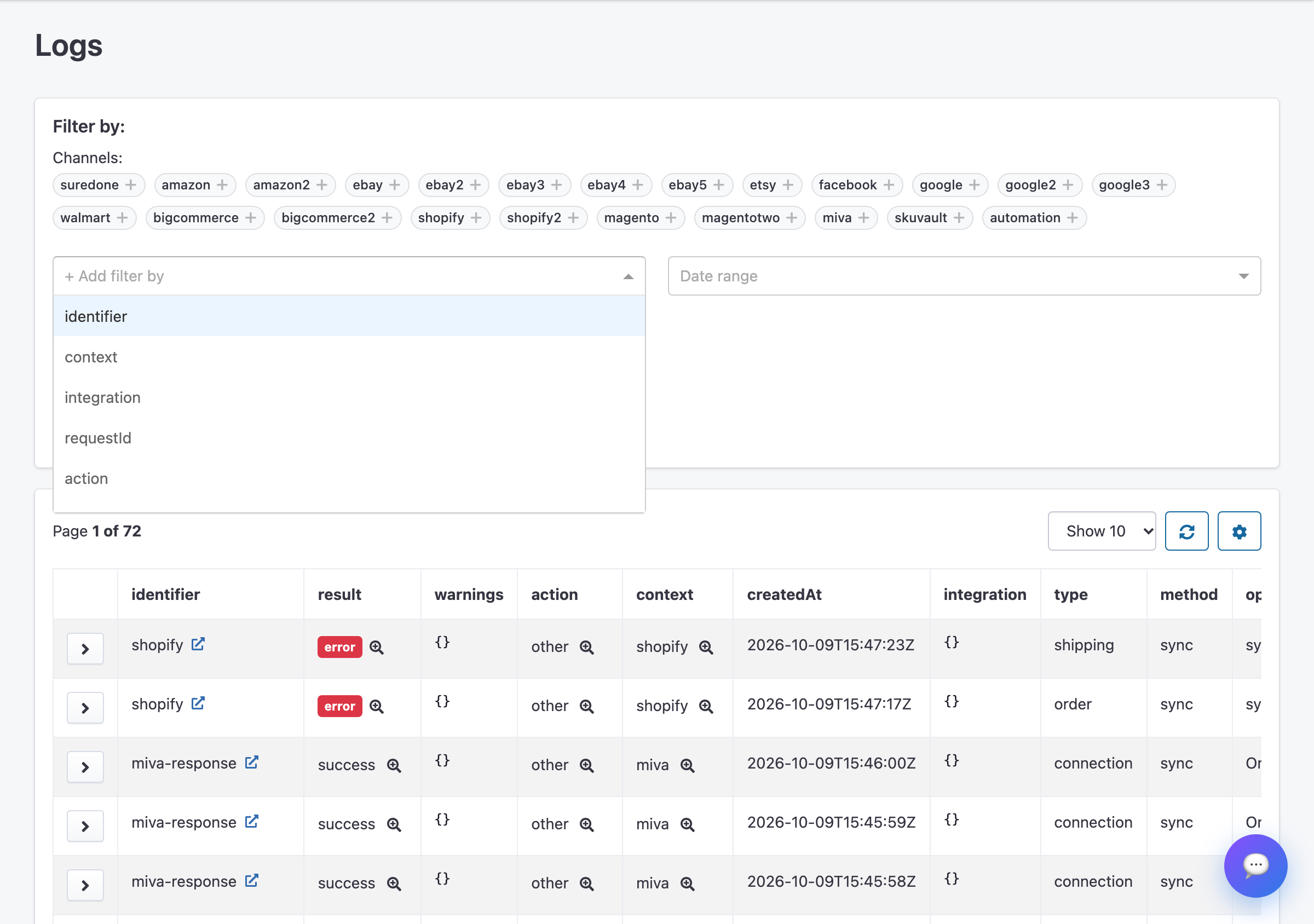
- Add filter by: filter on a specific log field. The list first shows identifier, context, integration and requestId. Once you add one of those, it also shows action, accountId, channelId, id, instance, jobId, method, operation, result, retry and type.
The filters you've applied appear under Active filters. Click the x on one to remove it. You can also click the magnifying glass next to a value in the table, such as a result of "error", to filter by that value.
Use Download as .json or Download as .csv to save the logs you're viewing.
Choosing columns
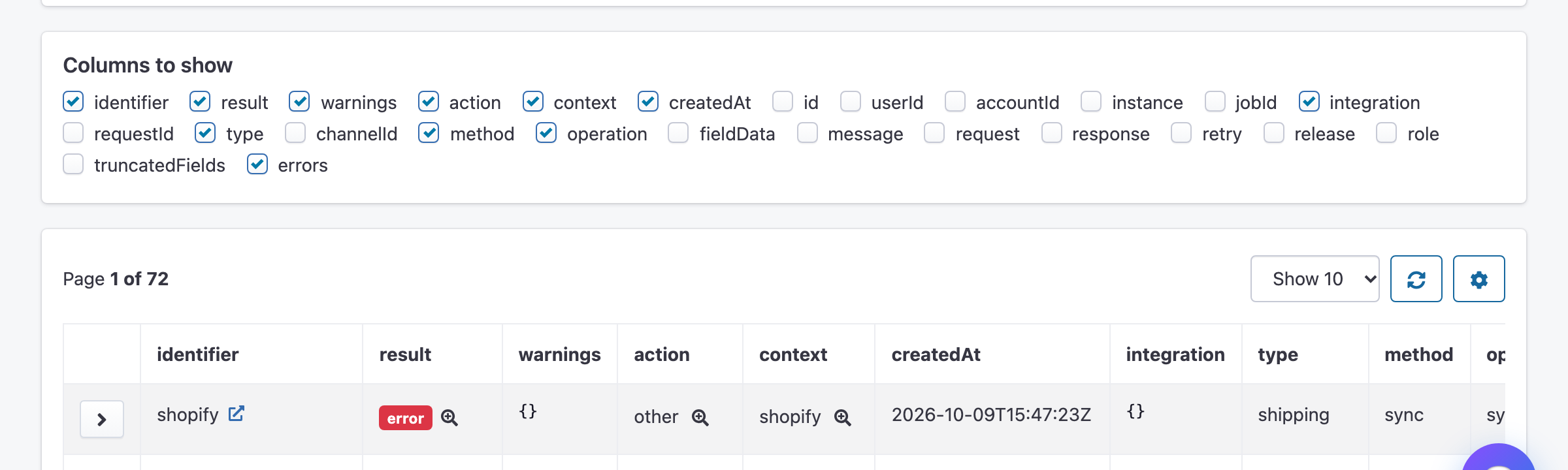
Click the gear icon above the table, on the right, to open Columns to show. Tick the fields you want as columns. These include fields you can't filter on, such as message, request and response.
Viewing a log
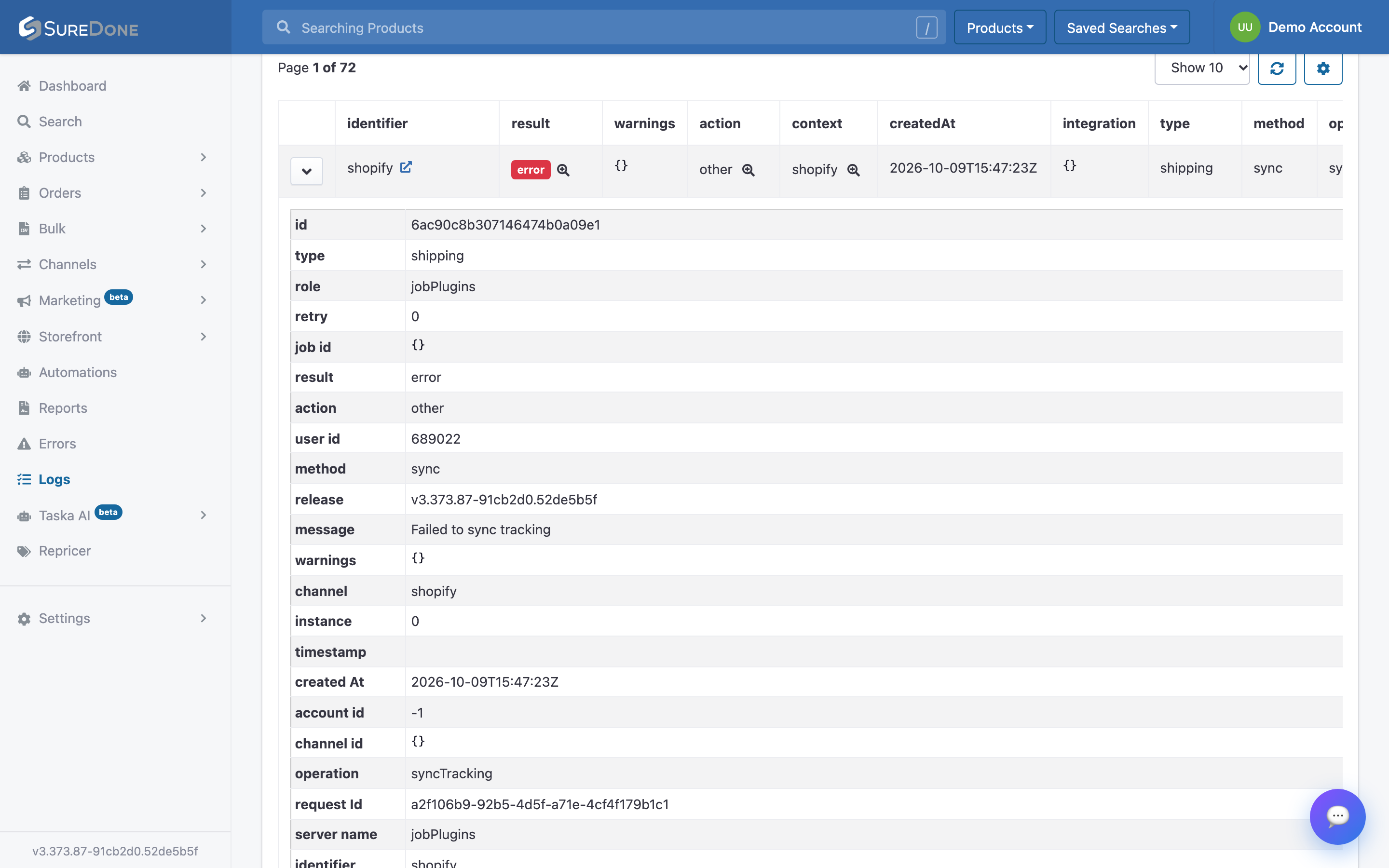
Click the arrow in the first column of a row to expand the log and see all its details, including the message explaining what happened. To open a log in a new tab, click the link icon next to its identifier. The new tab also lists the other logs from the same request.
Logs in the product and order editors
When you edit a product or an order, the Statuses bar at the top shows a badge for SureDone and for each channel. Click a badge to open the latest log for that channel in a new tab.

Logs for automations
To see an automation's logs, open the automation from Automations and go to its Logs tab. Click a row to see the log details, and click View full log to open it on the Logs page.
