

To add a Google Shopping instance and authorize it please go through the following steps:
1. Go to Channels > Add Channel > Google Shopping and click Add Channel:

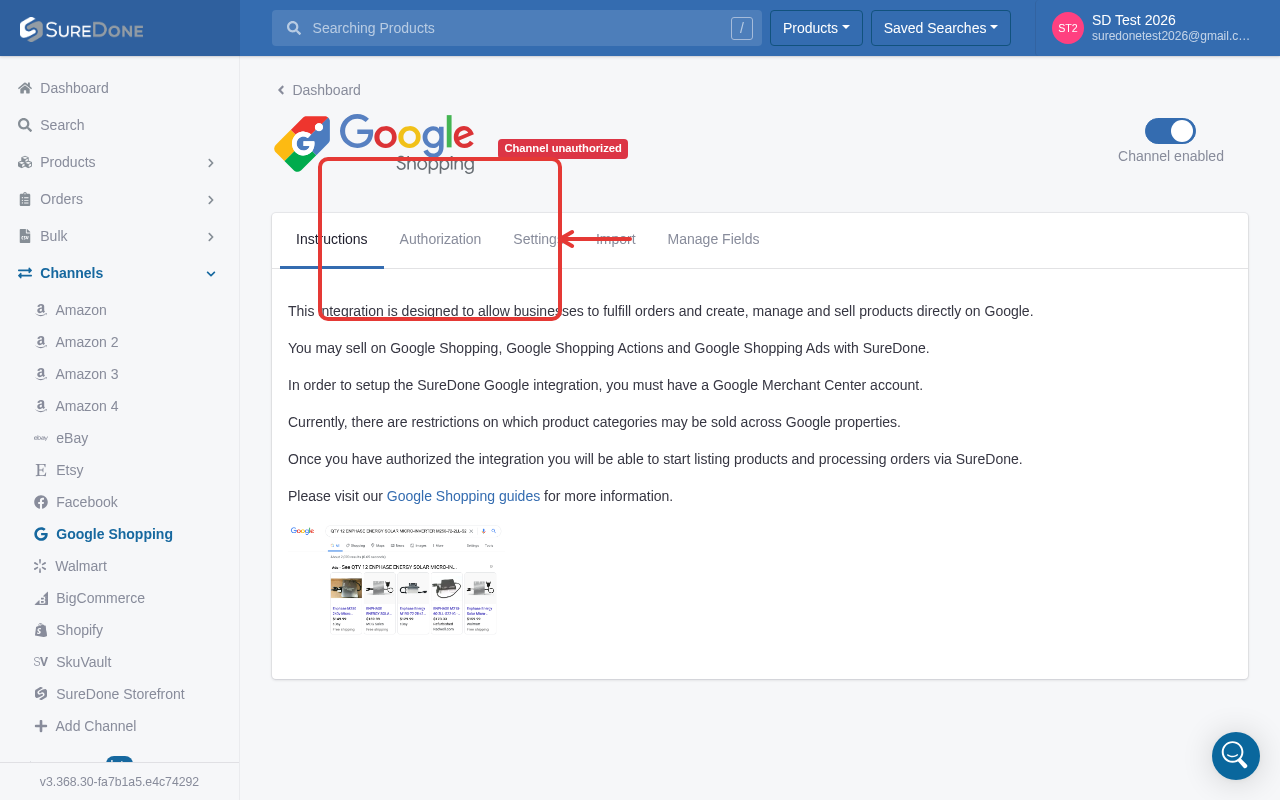
2. On the Google Shopping row (Channels > Add Channel > search 'Google Shopping'), click Add Channel. This immediately creates the channel and opens its detail page with Instructions / Authorization / Settings / Import / Manage Fields tabs — there is no separate preview page requiring a second 'Add Channel' click. Open the Authorization tab, which now shows a 3-stage progress wizard: Step 1: Permissions → Step 2: Onboarding → Step 3: Complete. Review the three sub-steps (Login & Verify Business User, Review & Grant Permissions, Apply User Roles), then click Sign in with Google (this button was previously labeled 'Authorize Google Shopping') to begin authorization.

3. Verify that the user is connected to the Google Merchant Center that will be associated with the SureDone product catalog. Note - when you change your password in Google you must re-authorize your integration. Contact support for more information.

4. In order for this user to access orders in Merchant Center, you'll need both a) add the user to Google Merchant Center and b) grant this user the proper permissions to manager orders.

For Enterprise level integrations, please file a ticket with SureDone Support.