To create new listings one by one in SureDone, below are the general requirements:
- Required fields for listing on all marketplaces:
- Title
- Price
- Stock
- Condition
- Additional fields required for eBay & Amazon
- Image(s)
- eBay: 12 image maximum
- Amazon: 10 image maximum
- Storefront: unlimited images
- Full Description
- Shipping Options
- Image(s)
- eBay Requirements
- eBay Category
- eBay Store Categories (optional)
- Amazon Requirements
- ASIN
OR - Brand & MPN OR UPC
- Amazon Category
- Amazon Item Type
- ASIN
1. In the left sidebar, click Products to expand the menu, then click New Product.
2. The General section contains fields used across all marketplaces. Required fields are marked with an asterisk (): Title, Price, In Stock, Condition, SKU, and GUID*. Note: the FBA Stock field has been removed; use the Amazon section's FBA Status dropdown instead. The Full Description field is now labelled Description. A new Total Stock field shows aggregate stock across all channels.
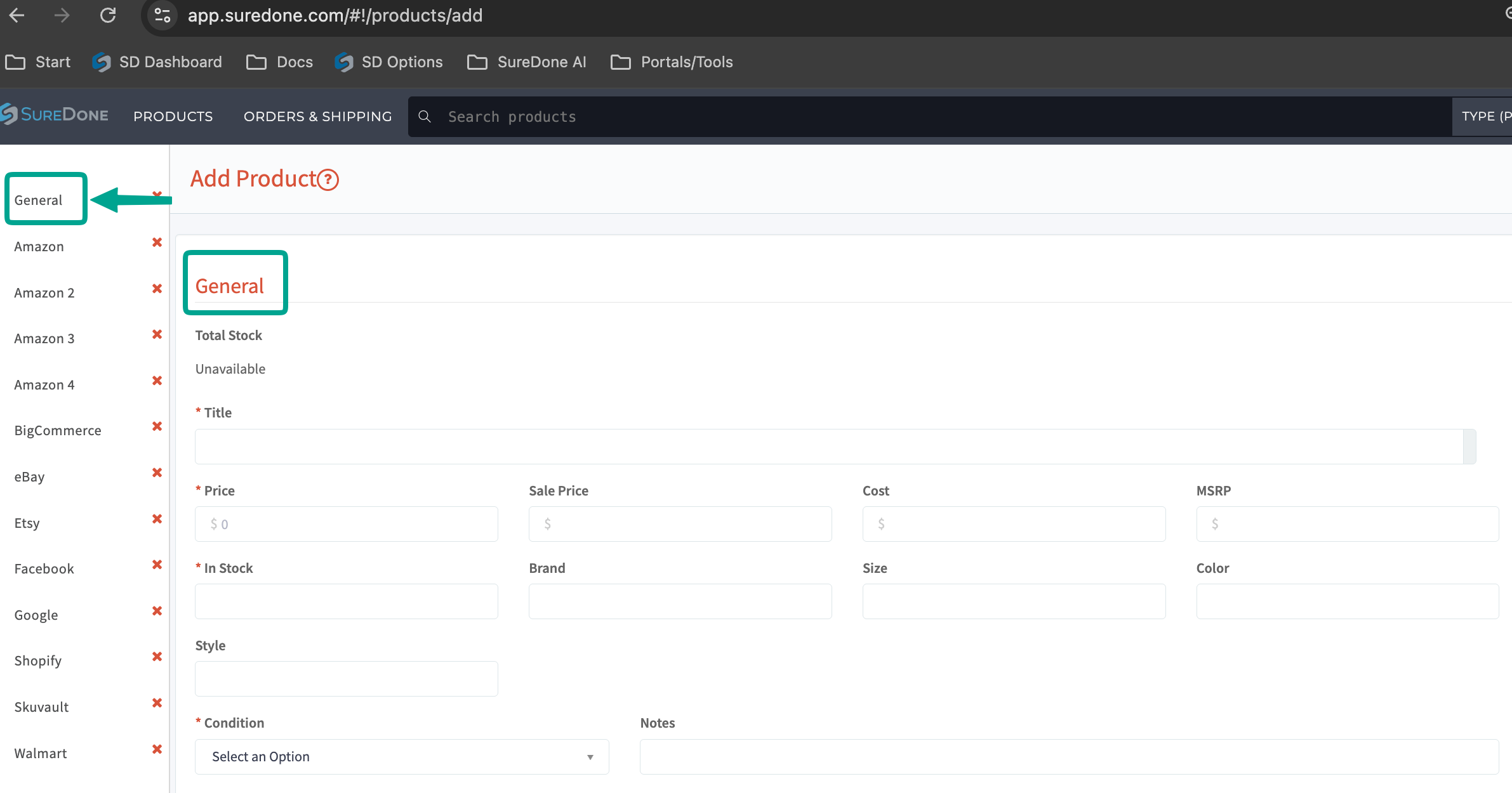
- Title*: The default title of the item that will be "ghosted" in all channels. Meaning, it will be used for eBay unless you scroll to the eBay section and change the eBay Title.
- Price*: The default price you want your item to be listed.
- Sale Price: If you have Discount Pricing activated on eBay Settings, you can enter a Sale Price to show a discounted price from the listing price. If your storefront template allows for this, it can be applied there too.
- Cost: This is your cost so you can track profits within SureDone. This is not displayed on the channels.
- MSRP: If you have Strikethrough Pricing activated on eBay Settings, you can enter the MSRP and Price, and it will show a strikethrough of the savings between the two prices.
- In Stock*: This is exactly the quantity of the product you have for sale.
- Total Stock: Shows aggregate stock across all channels.
- Brand, Size, Color, Style: These four fields are generally required fields for Item Specifics.
- Condition* and Notes: These fields are mapped to all channel Condition statuses and the condition notes fields.
- SKU*: One of the identifiers in SureDone; this can be the same on multiple items. When creating a multiple variation listing, this will be the same on all items in the variation. If you are using the SureDone SKU Generator, then you can leave the SKU blank, otherwise type in your SKU.
- GUID*: The Global Unique Identifier can never be the same across items. If you are creating multiple variations, this can be "sku-variation".
- UPC: Generally used in eBay, Amazon and other channels to identify the product.
- Description: This is the universally used description of your product on all channels. If you want to use a WYSIWYG (What You See Is What You Get) Editor, you can turn the switch from OFF to ON. You can use HTML in this section, but if you are listing to Amazon with a UPC (not ASIN), you will need a different description field without the HTML.
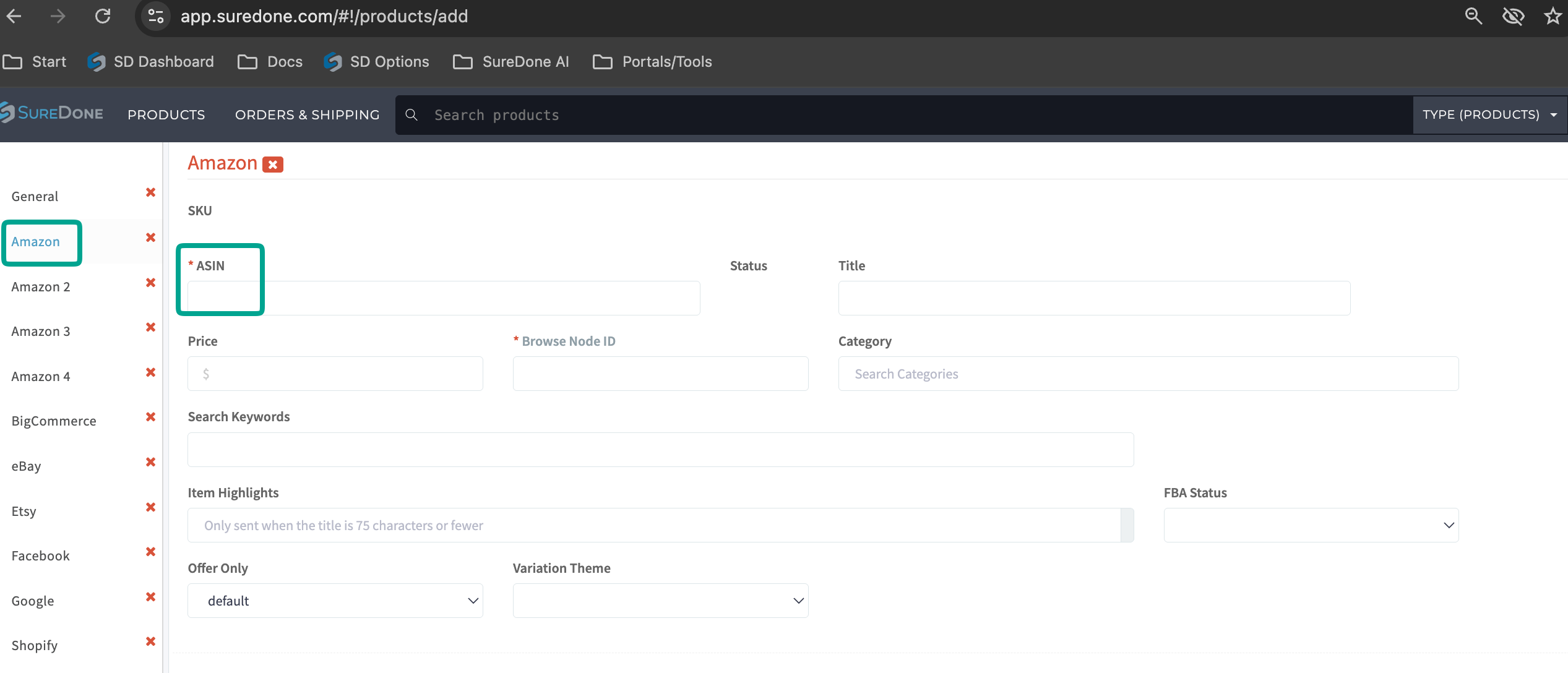
3. Fill out the required information for Amazon. The Amazon section now uses simplified field labels (without the 'Amazon ' prefix): ASIN* (required), Status, Title, Price, Browse Node ID* (required), Category, Search Keywords, FBA Status, Offer Only, and Variation Theme. For more information on listing to Amazon please click here.
4. Click on the eBay tab, fill out the required information for eBay. The section is now headed eBay (formerly 'eBay Main'). Fields include: Title, Show subtitle, Site ID* (formerly 'Site'), Listing Type, Listing Duration, Min Stock, Max Stock, Price, Best Offer (toggle), Immediate Payment (toggle), Category ID* with live eBay Category Search, Show second category, Scheduled Listing, Use Catalog Specifics, and UPC Does Not Apply. For more information on listing to eBay please click here.
5. Scroll down to the Media section to upload your images. Click Choose Files and you can choose multiple images on your computer. If you want to use a URL, you can "Paste an image url" next to Choose Files. If you are listing to eBay, you must first download the images and upload them, not add URLs. When entering a URL, SureDone just references the images. This is useful for most of the plugins and your SureDone storefront.

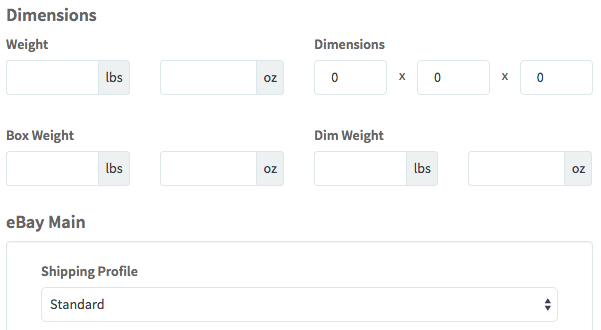
6. Fill out your shipping details. Enter Weight and Dimensions if you are using Calculated Shipping. Below this section, you will see your eBay Shipping Profiles. If you already have profiles created, you can simply choose these. If not, you will have to enter the Carrier, Cost, Package Type, etc.
7. Custom Fields are used to map eBay Item Specific fields, with Amazon required fields so you can use 1 field for the "Make" or "Model" if you're selling parts.
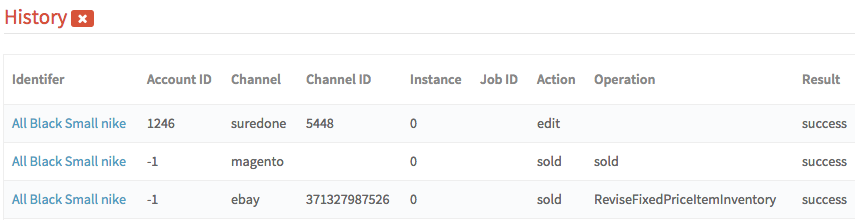
8. History is where you can see past information about the item. When it was created, when it was listed, if there were issues listing it, etc. You have to click the Pencil to see the history. It's hidden by default so the Products page loads faster.
If this is a brand new listing, you won't see anything when you click the Pencil.