

This is a random example for troubleshooting Amazon that should help explain how to use the Logs section in SureDone. In the current SureDone app, this is reached via the left-hand navigation's Logs item (not Settings > History), which lists every channel sync event with filterable Channel, Result, and Type columns. ONLY use this example as a basis to learn how to use Logs to troubleshoot any random issue based on the error code provided by Amazon.
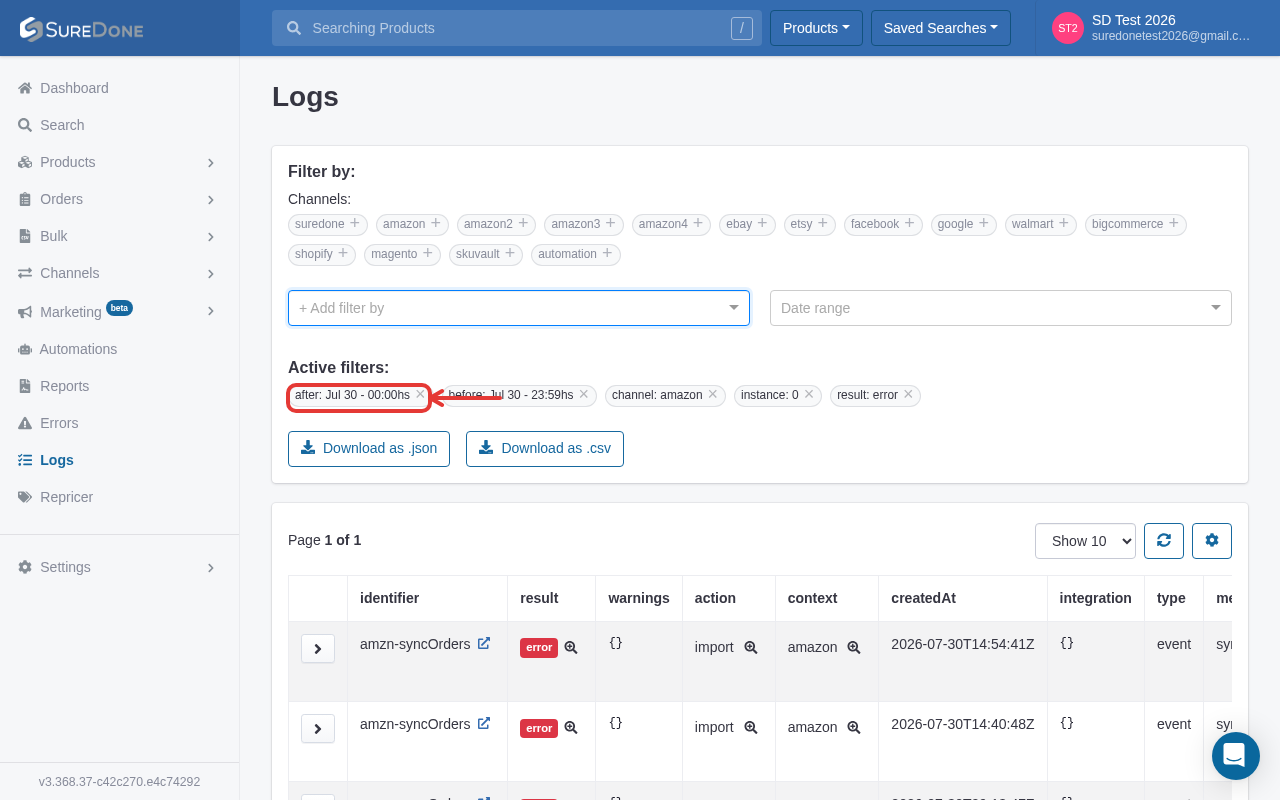
On the Logs page, use the Channels row to click the '+' next to amazon, then use the '+ Add filter by' dropdown to add a Result filter set to error, and a Type filter set to item. The matching entries appear in the 'Active filters' bar and the table below updates live — this replaces the old highlighted-row screenshot from the legacy History table.
Go to the Logs page and filter for the item you're troubleshooting, using the filters mentioned above:
Click the chevron on the left of the row you want to inspect to expand it. The expanded panel lists id, type, role, retry, result, action, method, release, message, warnings, channel, instance, timestamp, and more — the 'message' row contains the raw error text returned by the channel (e.g. Amazon's field-validation error), the same information the old vertical detail view exposed under 'Message:'.
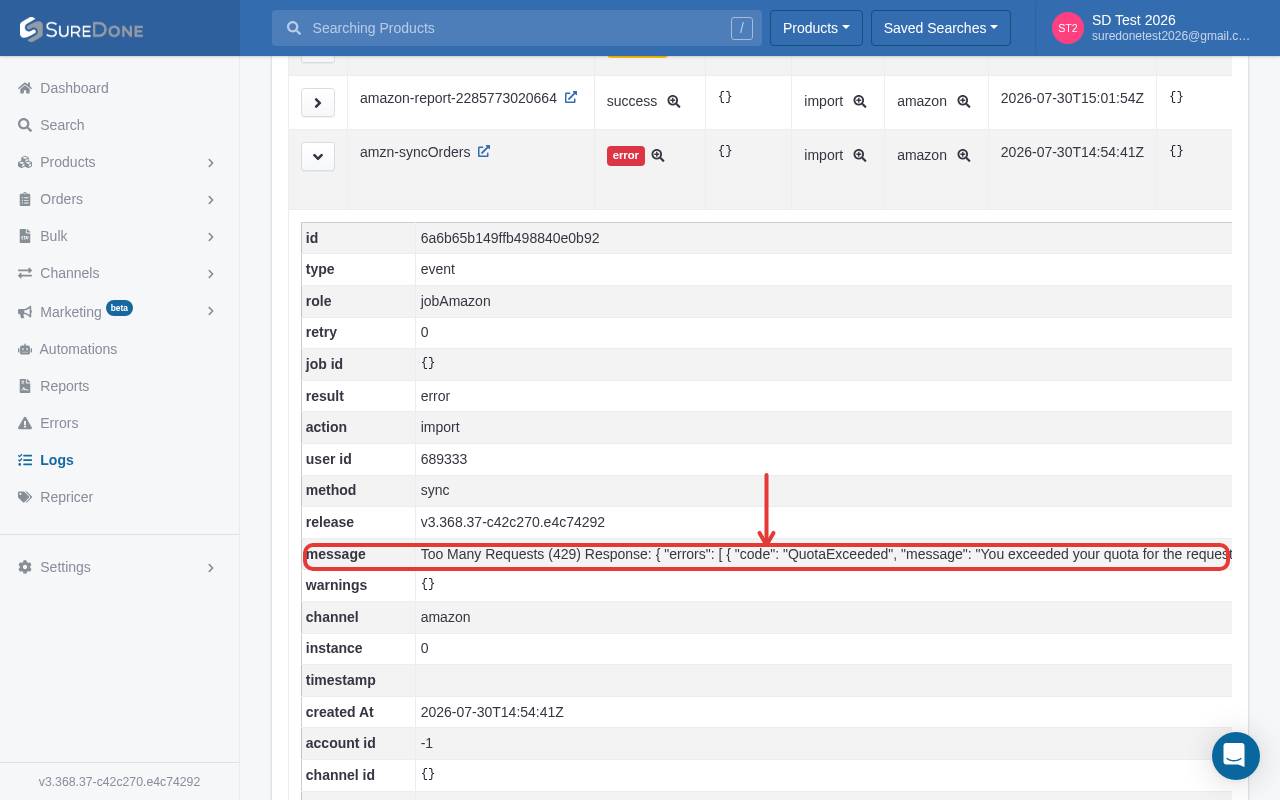
After you have this error code, you have the issue pinpointed and can work to resolve the issue with the information provided.
